
To migrate contacts from Excel to a CRM in 2026, preserve your original workbook, clean the contact records, map each column to a CRM field, and test the import before moving the full file. Use the format your CRM accepts, then reconcile imported records and inspect their contents before your team starts editing them. A successful import preserves relationships and usable information, not just names and email addresses.
- How to migrate contacts from Excel to a CRM: clean, map, test, import, then reconcile records.
- Microsoft Excel contact lists need consistent fields and duplicate checks before CRM migration.
- Keep phone numbers and postal codes as text to preserve formatting.
- Mesh App suits small and medium-sized businesses seeking CRM contact management alongside project and finance modules.
How do you migrate contacts from Excel to a CRM?
Follow the sequence below. For the wider changeover, use the guide to switching from Excel to CRM software without losing data.
1. Preserve the original
Save an untouched copy of every source workbook before changing columns or deleting rows. Keep it separate from the working import file, with access restricted to the people responsible for migration.
Record which sheets contain contacts, companies, project details, and historical notes. Hidden rows and filtered views also deserve inspection: a visible list is not necessarily the complete dataset. Decide what belongs in the CRM before exporting anything.
2. Clean the contacts
Use a consistent column layout and a clear rule for what each row represents. For a person-contact import, each row should describe a person rather than an entire company, project, or household.
Remove blank rows and repeated headers inside the data. Trim unnecessary spaces, inspect email addresses for typing mistakes, and standardize country names. Keep uncertain records in a separate review file instead of deleting information you cannot confidently classify.
3. Map the fields
Match every source column to its intended destination. Names belong in name fields, phone numbers in phone fields, and business names in the CRM's appropriate company field or related company record.
Check required fields and permitted values before importing. A spreadsheet column labelled Status does not automatically match the CRM's contact status field; the meaning and allowed values must match as well.
4. Test the import
Choose a small test file containing your difficult records, not just the cleanest contacts. Include accented names, international phone numbers, missing optional fields, shared email addresses, and contacts with company relationships.
Inspect the resulting CRM records manually. Confirm that fields landed correctly and that the import did not trigger unwanted notifications or other actions. Check available import controls before running the test.
5. Reconcile the results
Import the approved file using the settings established during testing. Preserve the import summary and any rejected-row report the CRM provides.
Compare source records with created, updated, skipped, and rejected records according to the importer's reporting rules. Resolve failures separately; do not upload the entire file again without understanding how the CRM handles existing contacts.
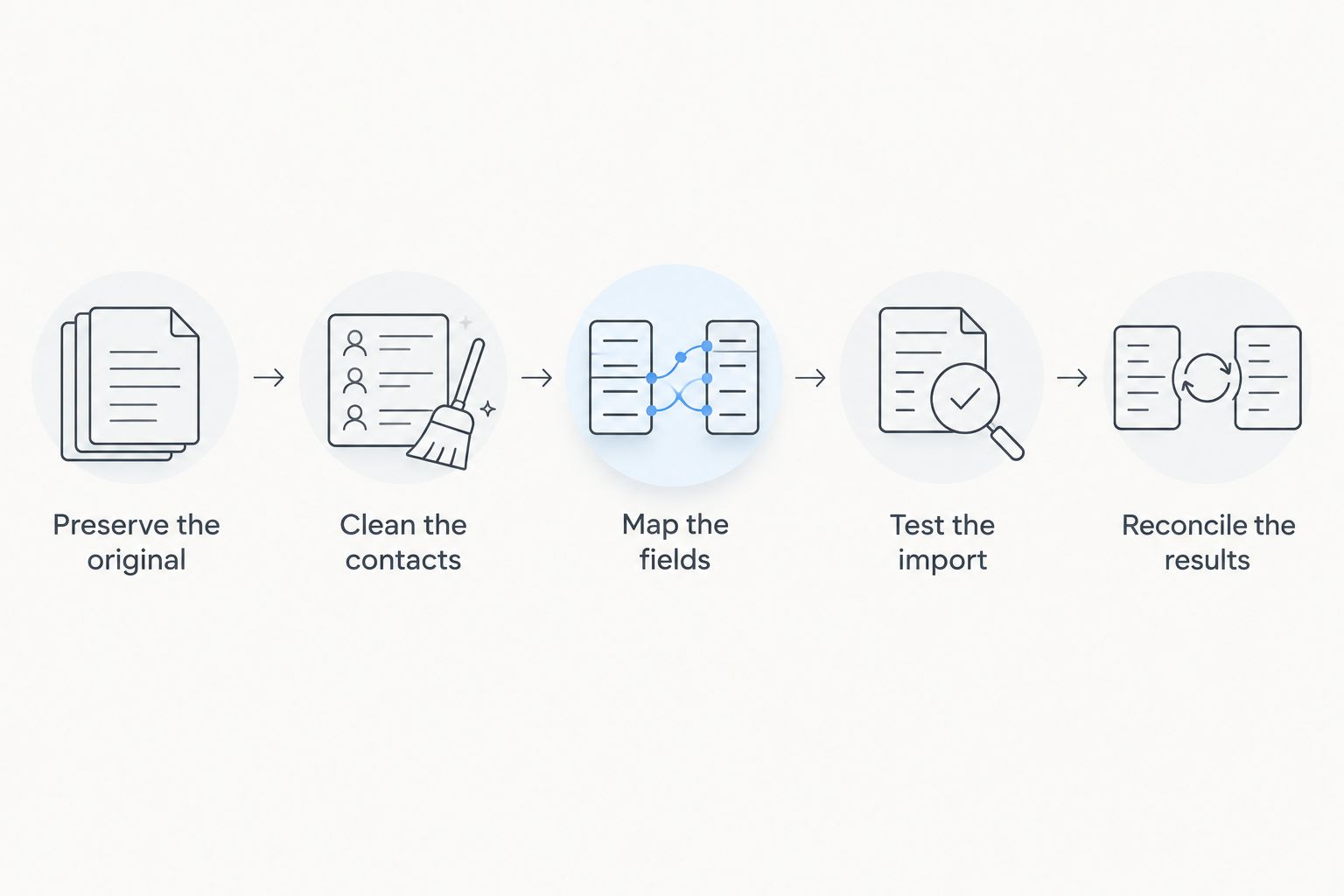
The sequence is Preserve the original, Clean the contacts, Map the fields, Test the import, Reconcile the results. Keep these checkpoints separate so a correction in the source file does not become an unexplained change in the live CRM.
Why this matters
A CRM import changes where your team finds and updates customer information. If names transfer but company links, ownership, or contact restrictions do not, the new database is incomplete even when the import finishes without errors.
For your 2026 migration, define success around the work people need to perform: finding a customer, identifying the correct business, and knowing who owns the relationship. An import completion message is not an acceptance check. Verify the records themselves before retiring the spreadsheet.
Should you use an Excel workbook or a CSV file?
Use the format documented by your destination CRM. Neither format removes the need for field mapping or validation, and support differs between importers.
| Format | Best for | Advantage | Limitation |
|---|---|---|---|
| Excel workbook | Reviewing and preparing contacts before export | Retains worksheets, formulas, and cell formatting | Workbook features do not necessarily transfer into CRM fields |
| CSV file | A flat contact list when the CRM accepts CSV | Provides a plain-text table for field mapping | Does not retain multiple worksheets, formulas, or workbook formatting |
Keep your working workbook even when you import CSV. It provides a place to document cleanup decisions and compare the exported values with the source.
Check the exported file in the CRM's preview, where available. Opening a CSV in Excel can cause values to be interpreted as dates or numbers, so use an import method that lets you set column types when reviewing sensitive identifiers.
What should your contact field map contain?
Create a mapping sheet before the upload. For each source column, document the destination field, the expected data type, and the treatment of blank values.
| Excel column | Intended destination | Check before importing |
|---|---|---|
| First name and last name | Contact name fields | Confirm whether the CRM expects separate fields |
| Email address | Contact email field | Inspect spelling and shared addresses |
| Phone number | Contact phone field | Preserve leading zeros and country prefixes |
| Company name | Company field or related company record | Confirm how the CRM creates or matches companies |
| Postal code | Address postal-code field | Preserve leading zeros and country-specific formatting |
| Contact owner | Assigned user or ownership field | Match values to valid destination users |
| Notes | Appropriate notes or text field | Check line breaks and permitted content |
| Contact restrictions | Relevant preference or restriction fields | Preserve the meaning and supporting information |
In your 2026 field map, distinguish information you can import directly from information requiring another workflow. A notes column is not automatically an activity history, and a company name is not automatically a relationship to a company record.
For columns without an appropriate destination, decide whether to create an available custom field, preserve the information separately, or exclude it under your retention rules. Do not hide operationally important data in an unrelated field simply to finish the import.
How do you avoid duplicate contacts?
Choose the matching rule before deduplicating or uploading. An email address helps identify many contacts, but shared inboxes mean it cannot always distinguish individual people.
Compare likely duplicates using several relevant fields, such as name, company, email, and phone number. Review conflicting details rather than keeping whichever row appears first. Different locations or roles can explain records that initially look identical.
If your CRM supports an external identifier, consider keeping a stable source identifier for reconciliation. Confirm that the importer can use it for matching; adding a column alone does not establish an update rule.
Test duplicate handling explicitly. Use an existing test contact to check whether a repeated import creates another record, updates the original, or rejects the row. Also establish whether blank cells overwrite existing values or leave them unchanged.
Why contact migration varies
The difficulty of moving an Excel contact list depends on the structure and condition of the records, not just the file size:
- Workbook structure: Contacts spread across sheets need consolidation rules before export.
- Record relationships: People, companies, projects, and locations need distinct treatment when the CRM stores them separately.
- Data consistency: Mixed name formats, country labels, and phone conventions create cleanup work.
- Duplicate ambiguity: Shared inboxes and incomplete records require review rather than automatic merging.
- Destination rules: Required fields, accepted formats, and matching behavior determine what the importer accepts.
- Operational dependencies: Ownership, contact restrictions, and connected workflows affect whether imported contacts are ready for use.
Resolve these issues before scheduling the final upload. The useful planning question is not simply how quickly the file transfers; it is whether you have agreed rules for handling records that do not fit.
What must you check before your team uses the CRM?
Write an acceptance checklist before the full import. For a 2026 cutover, that checklist should cover both the imported data and the team's handover.
Check the record totals
Reconcile the approved source file with the CRM's import results. Separate newly created contacts from updates, skipped rows, and rejections when those categories are available.
A lower destination total does not automatically indicate lost data: deliberate duplicate merging changes totals. Document those decisions so the difference has an explanation.
Inspect difficult records
Check names with umlauts and other accents, international addresses, leading-zero identifiers, and multiline notes. Compare the imported values directly with the approved source file.
Also inspect relationships and ownership. A correct phone number attached to the wrong company is still a migration error.
Confirm access and handover
Check that the intended users can find the contacts and that access reflects your internal responsibilities. Review permissions before exposing the imported database to the whole team.
Set a clear point after which the CRM becomes the working contact list. If spreadsheet edits continue during migration, capture and reconcile them before cutover. Keep the approved workbook as a controlled reference rather than a competing live database.
Where does Mesh App fit in an Excel-to-CRM migration?
Mesh App is best for small and medium-sized businesses seeking CRM contact management alongside project, time-tracking, invoicing, and finance modules. Those modules match businesses that need customer information connected to more than a standalone address book.
The advantage of Mesh App's modular CRM/ERP scope is the range of business functions offered within the platform. The decision still requires checking the specific contact fields, import route, duplicate controls, and relationship handling you need; the module list alone does not establish those details.
Before choosing Mesh App for your migration, review Mesh App against your field map and test-file requirements. Keep the assessment tied to your actual records rather than assuming that every spreadsheet column has a direct destination.
Can I import contacts without email addresses?
Contacts without email addresses can be imported when the destination CRM's required-field rules allow them. Check those rules before excluding records, and use another supported identifier if you need to match or update those contacts later.
Do not create dummy email addresses to satisfy a requirement. They introduce false information and obscure which contacts genuinely lack an address.
Will my Excel formulas and notes move into the CRM?
Excel formulas do not become CRM formulas merely because you import the spreadsheet. Prepare the values you need, check the exported result, and map those values to the appropriate fields.
Notes require a separate content check. Verify that line breaks and text survive the import, and distinguish general notes from dated activities or communications that need a different destination structure.
Should I delete the spreadsheet after importing contacts?
Do not delete the source spreadsheet immediately after importing contacts. First complete reconciliation, resolve rejected records, and confirm that the team can use the CRM correctly.
Retain the source only under your access and retention rules. Stop treating it as a live customer list after cutover; otherwise, later edits create conflicting versions of the same contact information.
FAQ
What's the safest way to move contacts from Excel to a CRM?
Preserve the source workbook, clean and map the fields, test difficult records, and reconcile the full import. Check imported record contents as well as totals before your team starts editing them.
Should I save my Excel contacts as CSV before importing?
Save contacts as CSV when your CRM's documented importer accepts or requires that format. Keep the working Excel workbook, and inspect the exported values before uploading.
How do I keep leading zeros in phone numbers and postal codes?
Treat phone numbers and postal codes as text during preparation, then verify how the export and CRM importer handle them. A leading zero already removed from the source cannot be restored reliably without checking the original information.
Can I import several people from the same company?
You can import several people from the same company when the CRM supports that contact structure. Confirm how company records are matched and linked so repeated company names do not create unintended duplicates.
What should I do when the CRM rejects contact rows?
Review the rejected-row report or available import errors, correct the affected records, and test the correction. Avoid re-uploading the full file until you understand the CRM's duplicate and update rules.
Will importing contacts give me permission to email them?
Importing contacts does not itself establish permission to send marketing emails. Preserve relevant consent information and restrictions, and assess the applicable rules before using the imported list for campaigns.
Can I keep using Excel while the contacts are being migrated?
You can keep using Excel during preparation if changes are tracked and reconciled before cutover. After handover, designate the CRM as the working contact source to prevent conflicting edits.
One last thing
The best test contact is the awkward one. Before your 2026 cutover, choose a record with an accented name, a leading-zero postal code, a shared business address, and a note containing line breaks, wherever those features occur in your real data.
If that record survives intact and its relationships remain correct, you have checked issues that a clean name-and-email row never reveals. Use genuine source records under appropriate access controls, and confirm the values rather than trusting the upload status.