
To switch from Excel to CRM software without losing data, preserve your original workbooks, clean a separate working copy, map each field, and test an import before moving the full dataset. Reconcile records and customer relationships before switching daily work to the CRM, then retain a read-only archive and a documented rollback plan.
- How to switch from Excel to CRM software: back up, map fields, test imports, and reconcile records before cutover.
- Mesh App suits small and medium-sized businesses seeking CRM alongside project management, time tracking, invoicing, and finance modules.
- A successful CRM migration preserves customer relationships and meaningful fields, not just spreadsheet row counts.
- Keep original Excel files unchanged; retire daily spreadsheet editing only after the CRM passes your acceptance checks.
Why this matters
A spreadsheet row can contain a customer, a contact, a job, and a payment note. A CRM can store those as separate records, so copying every cell does not automatically preserve their meaning. The migration succeeds when your team can reconstruct the customer relationship, not merely find the customer’s name.
Mesh App is a fit for small and medium-sized businesses seeking contact management alongside project, time tracking, invoicing, and finance modules. That scope makes the distinction between customer records and operational records important: define what belongs in each module before transferring data.
Use the following process as your 2026 migration checklist. Treat every imported field as something to verify, rather than assuming an accepted file is an accurate database.
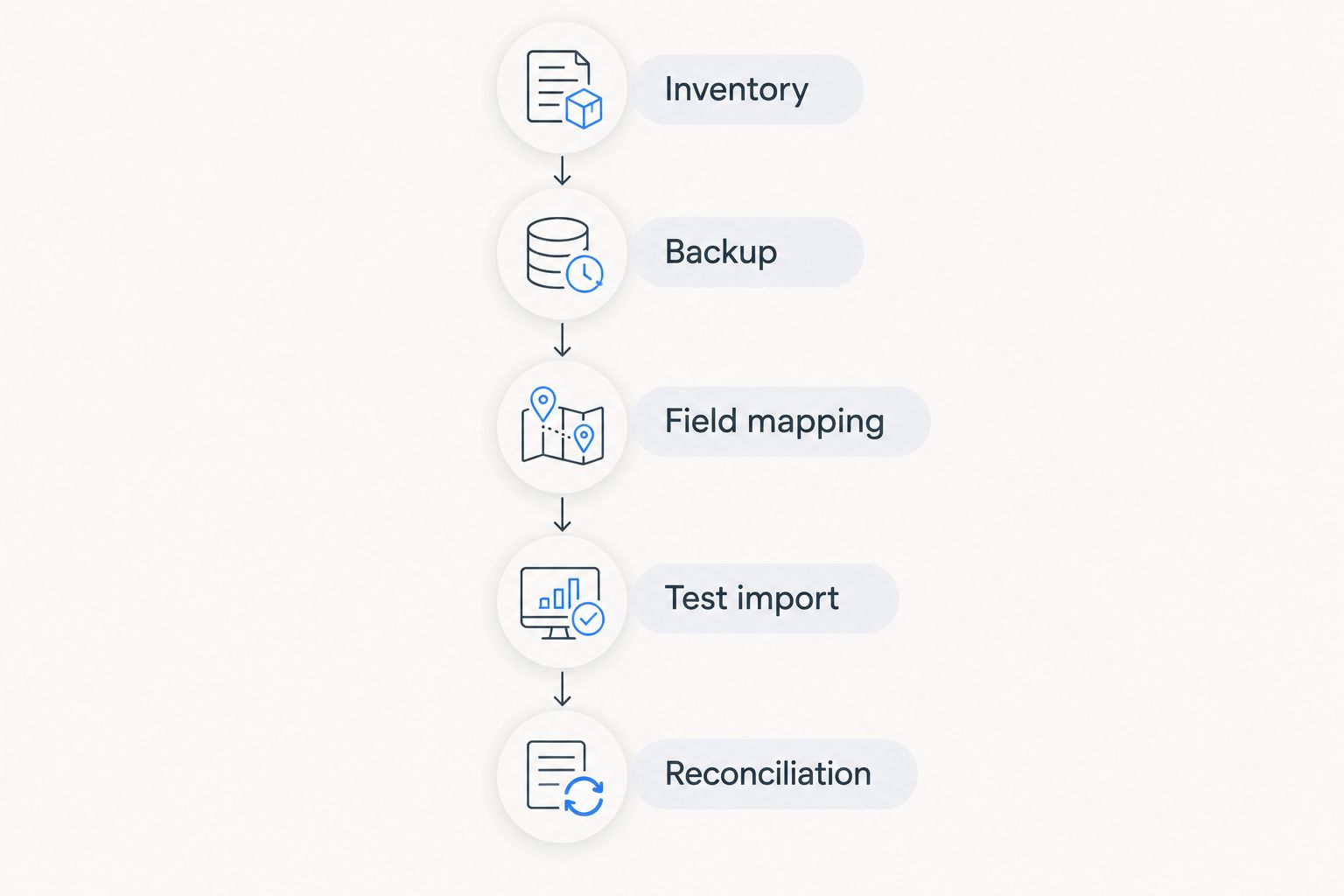
How to switch from Excel to CRM software without losing data
Follow these steps in order. Start with a controlled copy of your spreadsheets and finish with a signed-off transfer of daily work.
1. Inventory the workbooks and appoint a migration owner
List every workbook that contains customer information, including shared files, personal copies, archived job sheets, and separate contact lists. Record the owner, purpose, worksheet names, and whether each file is still being edited. Identify which version is authoritative when several files describe the same customer.
Appoint 1 migration owner to resolve conflicting records and approve the transfer. Other people can clean and check data, but the owner decides which source wins. Without that decision, a technically correct import can still transfer an obsolete address or overwrite a current contact.
Include information outside the visible table: comments, hyperlinks, hidden sheets, formulas, and referenced documents. Decide explicitly whether each item belongs in the CRM or the retained archive.
2. Preserve originals and create a working copy
Keep 2 separate copies before editing: an unchanged source backup and a working copy for preparation. Store the backup with restricted editing access and confirm that it opens correctly. A backup that nobody has checked is not a dependable recovery method.
Keep workbook structure intact in the original. Exporting a worksheet to CSV does not preserve the workbook’s formulas, formatting, comments, or other sheets. If those elements explain a customer balance or job status, retain the workbook as supporting evidence.
Name the archive clearly, such as customer-register-2026-original.xlsx, and record its source and backup date. Do not clean data inside the only copy of a live customer file.
3. Decide what each row represents
Separate companies, people, projects, and transactions before assigning destination fields. A customer appearing on several job rows is not necessarily several customers. Conversely, people sharing a company address are not necessarily duplicate contacts.
Create a migration identifier for each distinct record and preserve existing identifiers where they are reliable. Keep a cross-reference between the source identifier and the destination record. This makes it possible to investigate errors without relying on names alone.
For linked information, identify the parent record explicitly. A project needs a clear customer reference; a contact needs a clear company reference where that relationship applies. Do not treat a matching display name as proof of a relationship.
4. Clean values without destroying evidence
Standardize headings, remove accidental spaces, and make status labels consistent. Separate combined fields where the destination requires them separately, but keep the original value in the working file until you have verified the split.
Review duplicate candidates rather than deleting every repeated name. Use several relevant fields to judge whether records describe the same entity. An email address helps, but shared inboxes and missing email addresses make it unsuitable as the only rule.
Preserve phone numbers and postal codes as text during preparation. Check date interpretation, decimal separators, and characters such as ä, ö, ü, and ß. For Austrian, German, and Swiss customer records, these checks protect recognizable names and usable addresses.
5. Build a field-mapping sheet
Document where every source column goes and what happens to its value. The map should identify the destination record type, field, format, transformation rule, and treatment of blanks. Mark intentionally excluded columns so an omission cannot masquerade as an oversight.
| Excel content | Mapping decision | Acceptance check |
|---|---|---|
| Company and contact names | Separate company and person records where required | The correct person remains linked to the company |
| Telephone and postal code | Preserve meaningful characters and leading zeros | Compare the stored value with the source |
| Customer or project identifier | Retain as a traceable source reference | Locate the destination record from the source identifier |
| Dates and status labels | Define accepted formats and destination values | Confirm meaning, not just successful parsing |
| Formulas, comments, and links | Transfer supported content or retain it in the archive | Explain where the original information remains accessible |
Confirm the CRM’s actual import requirements before finalizing this sheet. Do not assume that notes, attachments, relationships, or historical activities use the same import mechanism as contacts.
6. Test a representative import
Choose records that expose different failure modes: a customer with several contacts, an incomplete address, a repeated name, a closed project, and a name containing diacritics. Include blank fields and linked records. A test made only of clean, uncomplicated rows proves too little.
Use a test environment or another isolated method supported by the destination system. Before importing, establish how you will remove test records and whether repeating the import creates duplicates, updates existing records, or rejects them.
Check the resulting records through the interface your team will use. An import log can show accepted rows while a salesperson still sees the wrong company relationship or an unusable telephone field.
7. Reconcile the full migration
Use 3 validation checkpoints: record completeness, field accuracy, and relationship accuracy. Count source records after approved deduplication, then account for every imported, rejected, merged, or deliberately excluded record. Do not compare the CRM total with an uncleaned spreadsheet total and expect automatic agreement.
For field accuracy, inspect important values and investigate blanks or truncation. For relationship accuracy, open linked contacts and projects from the customer record and confirm they belong there. Record exceptions and their resolutions in a migration log.
Where you migrate financial information, compare relevant totals using consistent scope and units. Do not combine different currencies or treat calculated workbook values as equivalent to destination calculations without checking the underlying rules.
8. Cut over and retain a rollback path
Set a precise cutoff for spreadsheet edits. Record the full date and time, including the timezone; a note that only says “2026 migration” cannot identify which late changes belong in the transfer. Capture changes made after the preparation snapshot before approving the final import.
Make the legacy files read-only once the CRM becomes the operational record. Tell your team where to enter new contacts, update customer details, and record follow-ups. Keeping both systems editable creates competing versions of the truth.
Document the rollback trigger and recovery procedure before cutover. If serious validation errors appear, pause new entries and preserve the changes already made in the CRM before restoring the previous workflow.
The process follows a deliberate order: establish the source, protect it, prepare it, test the transfer, and reconcile the result. Skipping preparation pushes unresolved decisions into the import itself.
Which migration approach fits your spreadsheet data?
Choose the approach according to the information you need to preserve, not just the convenience of uploading a file. The destination system’s supported formats and record types determine what is possible.
| Approach | Best for | Advantage | Limitation |
|---|---|---|---|
| Structured file import | Consistent contact tables with defined field mappings | Transfers prepared rows through a repeatable process | Unsupported fields and relationships require separate handling |
| Manual entry | Selected records that need interpretation before transfer | Allows deliberate review of each record | Repeated typing introduces transcription risk |
| Scripted migration | Related datasets requiring repeatable transformations | Makes transformation rules explicit and reusable | Requires technical ownership, testing, and error handling |
Use a structured import when the CRM supports the required records and your mapping is clear. Reserve manual entry for exceptions rather than using it to bypass unresolved data rules. Choose a scripted migration only when someone can maintain and explain the transformation logic.
Why Excel-to-CRM migrations vary
The number of spreadsheet rows does not describe the whole job. These factors determine what you need to prepare and test:
- Record structure: A clean contact list requires different mapping from a worksheet mixing customers, projects, and invoice notes.
- Duplicate rules: Repeated customers need review before you decide which details to merge or preserve separately.
- Relationships: Contacts, companies, and jobs need explicit links rather than matching names by appearance.
- Embedded information: Formulas, comments, hyperlinks, and attachments need a documented destination or archive.
- Import behaviour: Supported formats, blank-value handling, and update rules determine how repeated imports affect records.
- Live changes: Continued spreadsheet edits require a cutoff and a method for transferring changes made during preparation.
For a 2026 implementation, write these decisions into the migration plan before committing to a cutover date. A schedule should follow the cleanup and validation work, not replace it.
Can I move customer data first and projects later?
Yes, migrate customer data first if you retain the identifiers needed to connect projects later. Record those links before separating the datasets; otherwise, a later project migration becomes a name-matching exercise.
Mesh App combines CRM contact management with project management, time tracking, invoicing, and finance modules. That modular scope supports planning by business function, but verify the actual import route for each record type before selecting the transfer order.
Should I delete Excel after switching to a CRM?
No, keep an unchanged, access-controlled archive after the operational switch. Stop editing the legacy register, but preserve the source and migration log according to your retention requirements.
An archive helps explain historical values and investigate migration discrepancies. It is not a reason to retain personal data indefinitely or leave unrestricted copies on individual devices.
How do I know the migration is complete?
A migration is complete when every in-scope source record has an explained outcome and the CRM passes completeness, field, and relationship checks. Successful file upload is only an intermediate event.
Ask users to perform real tasks: find a customer, identify the right contact, and locate the relevant project. Resolve failures before signing off the migration.
FAQ
What's the safest way to switch from Excel to CRM software?
The safest approach is to preserve the original files, prepare a separate working copy, test the mapping, and reconcile the full import before cutover. Keep an access-controlled archive and document how to recover if validation fails.
Can I import an Excel workbook directly into a CRM?
Direct workbook import depends on the CRM’s supported file formats and record types. Confirm those requirements before exporting, and retain the original workbook because CSV does not preserve workbook structure, formulas, or comments.
How do I prevent duplicate customers during migration?
Define matching and merge rules before importing, using reliable identifiers and several relevant fields. Review ambiguous matches rather than treating every repeated name or shared email address as a duplicate.
Will Excel formulas work after I import the data?
Do not assume Excel formulas will transfer as working CRM calculations. Decide whether to transfer the resulting values, configure supported destination calculations, or retain the workbook as the historical source.
How can I keep contacts linked to the right company?
Preserve a reliable company reference for each contact and map it to the destination relationship. Test the resulting links in the CRM interface rather than relying only on accepted-row counts.
Is Mesh App relevant if I need more than contact management?
Mesh App offers contact management, project management, time tracking, invoicing, and finance modules for small and medium-sized businesses. Check the import requirements for each module before planning a staged transfer.
Should my team keep updating Excel during the switch?
Stop spreadsheet edits at a documented cutoff and transfer any changes made after the preparation snapshot. After sign-off, use the CRM for operational updates and keep the legacy register read-only.
One last thing
A matching row count can hide a broken migration. The same number of records can contain wrong dates, blank fields, or contacts linked to the wrong company.
Before approving your 2026 cutover, ask a colleague who did not prepare the import to find a customer and explain the associated work. If that person needs the old spreadsheet to understand the relationship, the migration has not passed its practical acceptance test.