Instead of copying job updates into customer chats, build a Mesh App WhatsApp Business integration that sends an approved message when a relevant job change occurs. First confirm a supported route for reading project changes and sending WhatsApp messages; then connect the workflow, restrict its triggers and test delivery before enabling customer notifications.
- Build your Mesh App WhatsApp Business integration around verified project events, customer consent and approved message templates.
- Mesh App CRM/ERP suits small and medium-sized teams managing contacts and projects together.
- Use the WhatsApp Business Platform for programmatic messaging; do not assume the mobile app provides an automation connection.
- Keep job updates one-way until delivery logging, duplicate prevention and reply ownership work.
Why this matters
A job update creates work when someone must find the customer, check the latest appointment and rewrite the message. Connecting the wrong records creates a worse problem: a correct update sent to the wrong person.
Mesh App provides contact management and project management within a modular CRM/ERP platform. Mesh App CRM/ERP is best suited to small and medium-sized teams that need contacts and projects in one modular system. That fit does not establish which messaging connections are available in your account.
For a 2026 rollout, separate the project record from the delivery channel. The project record holds the operational facts; WhatsApp carries the customer-facing update. A sent message must never become the only record of a changed appointment.
Before you start
- Confirm source access. Obtain administrator access and documentation for a supported way to read project changes: a documented connector, API, webhook or export. Confirm the required fields are accessible before building anything.
- Confirm messaging access. Arrange access to your organisation's WhatsApp Business Platform setup, its authorised sending number and an approved template for business-initiated updates. The WhatsApp Business mobile app is not, by itself, proof of a programmatic sending route.
- Resolve the hidden blocker: recipient eligibility. Record the customer's permission to receive WhatsApp updates and identify the correct job contact. Outside WhatsApp's 24-hour customer service window, business-initiated messages require approved templates; a saved telephone number alone is insufficient.
Treat these as release gates, not paperwork. Do not purchase middleware or configure production credentials until both ends of the connection are documented.
Source connection and event rules
Establish the supported connection
- Ask the account administrator or support contact to identify the supported method for reading project changes. Request documentation covering authentication, permissions, available events and record identifiers.
- Confirm whether the method reports individual changes or requires periodic retrieval. For periodic retrieval, establish how to identify records changed since the previous successful run.
- Create credentials with only the access the workflow needs. Keep credentials in the integration service's protected credential storage, not in job notes or message text.
- Retrieve a test project and its intended contact. Check that the project identifier remains stable when the job name changes.
Expected result: you can retrieve a specific test project and identify its intended recipient through a documented connection. If that fails, stop at this gate rather than substituting browser scraping or an undocumented endpoint.
This guide defines the configuration decisions and acceptance tests. Use the verified connector's documentation for its actual buttons, field labels and authentication steps.
Define a customer-visible event
- Choose a single event for the pilot, such as a confirmed appointment change. Keep internal comments, draft schedules and administrative corrections outside the sending rule.
- Define which values must exist before sending: project reference, recipient, permission record and confirmed appointment information.
- Compare the previous and current customer-visible values. Saving an unchanged project must not create another notification.
- Assign a stable event identifier. Where the source supplies none, define a documented deduplication key using the project identifier and the relevant change version.
Expected result: a meaningful appointment change produces an eligible event; an ordinary save does not.
If your contact list still contains duplicated rows or inconsistent numbers, use the guide to migrating contacts from Excel before connecting customer messaging. Fixing recipient identity after sending is too late.
Recipient and message configuration
Establish the recipient mapping
- Map each project to its designated customer contact. Do not select the first telephone number found in a project description.
- Store telephone numbers in international format. The E.164 standard allows a maximum of 15 digits, excluding the leading plus sign used in common written notation.
- Preserve the country code. Do not infer it from the company's address when customers operate across Austria, Germany and Switzerland.
- Check the recipient's recorded permission and any withdrawal before each send. Route missing or conflicting contact information to manual review.
Expected result: each eligible event resolves to the intended, permitted recipient, or stops with a clear review reason.
Prepare the outgoing message
- Prepare a WhatsApp message template that describes the operational update without unrelated promotional content. Submit it through the template-management interface supplied by your messaging setup.
- Map the approved template's parameters to the corresponding job values. Follow the parameter order or naming required by that template.
- Include only information needed for the update. Keep internal notes, access credentials and sensitive attachments out of the message.
- Format the appointment using an explicit date and the relevant local time. Check daylight-saving behaviour rather than hard-coding a permanent UTC offset.
Expected result: the approved template renders the correct job reference and appointment information for your test recipient.
An illustrative message structure is: Appointment updated. Job reference: reference. Confirmed appointment: date and local time. Reply if this appointment does not work. Replace those descriptive values through the approved template mapping; this example is not a claim that a particular template is already approved.
For your 2026 template review, check that the wording describes a confirmed event. A message that says an appointment is confirmed must not be triggered by a provisional scheduling edit.
Sending controls and delivery verification
Build the workflow around a visible sequence: Project change, Recipient check, Template mapping, Message send and Delivery log. Each stage needs a pass condition and a failure owner.
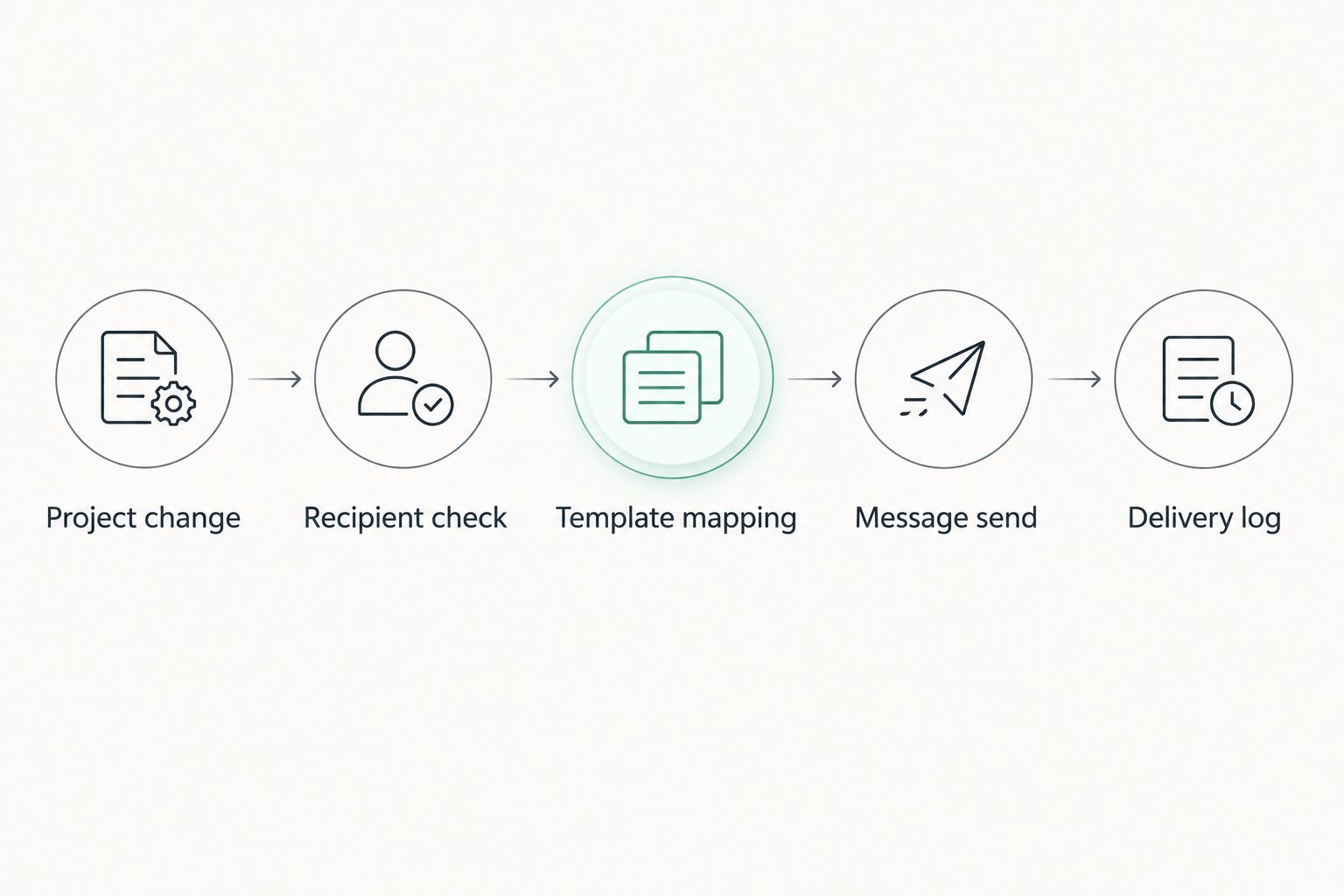
Configure sending and failure handling
- Pass only validated events to the messaging connection. Keep the sending credentials separate from source-system credentials.
- Check the event identifier against the send log before dispatch. Record the messaging response and provider message identifier when returned.
- Separate temporary failures from permanent failures. Retry according to the provider's documented behaviour; do not repeatedly retry an invalid recipient or rejected template.
- Route unresolved failures to a named operator. Keep the original event and failure reason available for review.
Expected result: a valid event produces a traceable send attempt, while an invalid event stops without notifying the customer.
An accepted API request is not the same as confirmed delivery. Use delivery-status events where your chosen messaging connection supports them, and distinguish accepted, delivered and failed outcomes.
Run a controlled pilot
Use 5 test events as a minimum pilot checklist: a valid change, an unchanged save, a missing recipient, withdrawn permission and a repeated event. These are recommended test cases, not a platform performance benchmark.
- Send the valid change to an authorised test recipient and check the rendered message.
- Confirm that the unchanged save produces no message.
- Confirm that missing recipient data and withdrawn permission block sending.
- Replay the original event and confirm that duplicate prevention blocks another dispatch.
- Record the outcome and obtain approval from the person responsible for customer communications.
Expected result: only the intended event sends, and every blocked event has an understandable reason.
Keep your 2026 pilot evidence with the workflow configuration. A later template change, recipient-mapping change or credential replacement should trigger another test before production use.
Variant: notify customers when a confirmed appointment changes
An appointment-change workflow needs more care than a new-job notification. Several internal edits can happen before a dispatcher settles on the final schedule.
Use a confirmed schedule change as the sending condition, not every modification timestamp. Compare the previous confirmed date and time with the new confirmed values, and suppress updates that change only internal fields.
| Workflow | Best for | Advantage | Limitation |
|---|---|---|---|
| Manual WhatsApp updates | Occasional jobs needing individual explanation | A person checks context before sending | Staff must copy details and record the outcome |
| Automated confirmed-job notice | Repeated, clearly defined job confirmations | Applies the same recipient and message checks | Requires a documented source connection and messaging setup |
| Automated appointment-change notice | Teams rescheduling confirmed customer appointments | Sends the revised confirmed information consistently | Needs previous-value comparison and careful duplicate prevention |
Start with the confirmed-job notice if your scheduling process still changes frequently. Add appointment-change notifications only after the team consistently distinguishes drafts from confirmed appointments.
For the second variant, use a new event identifier for each genuine confirmed change. Reusing the original job-created identifier would incorrectly suppress later appointment updates.
Troubleshooting
The workflow finds a job but cannot find a recipient
Check the relationship between the project and its designated contact. A company record, billing contact and on-site contact are not automatically interchangeable.
Require an explicit notification recipient. Keep the event blocked until someone resolves the missing relationship; do not fall back to an unrelated number.
WhatsApp rejects the message
Inspect the provider's returned error before changing the workflow. Check sender authorisation, template approval, language and parameter mapping.
Also check the messaging-window rules. Outside the 24-hour customer service window, free-form text is not a substitute for an approved template.
A customer receives duplicate updates
Look for repeated source events, retries after an uncertain response, or separate automations watching the same project. Check whether the send log is written before another worker processes the event.
Use a persistent deduplication record and provider-supported idempotency where documented. Do not assume an event is unique because its display time differs.
An appointment appears at the wrong time
Compare the source value, its time zone and the rendered message. A timestamp without a zone can be interpreted differently by the source system and middleware.
Use the appointment's intended local zone and test dates on both sides of a daylight-saving change. Do not fix a seasonal error by adding a permanent hour.
Messages send, but nobody handles replies
An outbound workflow does not automatically create an inbound support process. Assign ownership of the receiving business inbox and define how scheduling replies reach the dispatcher.
Keep replies out of automatic project updates until you have reliable customer and job matching. A customer saying that tomorrow is unsuitable is not an instruction to cancel every open appointment.
Customize your workflow
Expand the workflow by business event, not by adding more messages. Completion notices and revised appointments need different eligibility checks and wording.
Mesh App includes time tracking, invoicing and finance modules alongside contact and project management. That module range is useful when planning connected operations, but each additional automation still needs its own documented access route and acceptance tests.
For your next 2026 release, review who can edit recipient data, who can change templates and who owns failed sends. Keep the release narrow enough that one operator can explain every notification rule.
FAQ
Can I connect Mesh App directly to WhatsApp Business?
Confirm a documented connection in your account before building a direct integration. A supported project-data access method and an authorised WhatsApp sending route are both required; do not assume a native connector exists.
Is the WhatsApp Business app enough for automated job updates?
Do not treat the WhatsApp Business mobile app as a programmatic sending connection. Build automated sending through the WhatsApp Business Platform or a provider using that platform, subject to its documented setup.
Do customers need to agree to WhatsApp job updates?
Record the customer's permission before sending business-initiated WhatsApp updates. Check withdrawals before each send and obtain appropriate privacy guidance for your customer-data process.
Can I send a job update outside the 24-hour window?
Use an approved message template for business-initiated updates outside WhatsApp's 24-hour customer service window. Check that the template's language and parameters match the update you intend to send.
How do I stop duplicate job notifications?
Store a stable event identifier and check it before dispatch. Keep the send outcome in persistent storage so a repeated event or retry does not automatically produce another message.
Can WhatsApp replies update the job automatically?
Treat reply-driven updates as a separate workflow requiring documented inbound-message access and reliable customer-to-job matching. Start with human review so an ambiguous reply cannot overwrite a confirmed appointment.
What should I test before enabling customer notifications?
Test a valid change, an unchanged save, a missing recipient, withdrawn permission and a repeated event. Verify both message content and blocked-send behaviour before enabling the workflow for customers.
One last thing
Test the messages that must not send. A successful delivery proves that the connection works; a blocked duplicate or withdrawn-permission test proves that your notification rules work. Both belong in the release decision.