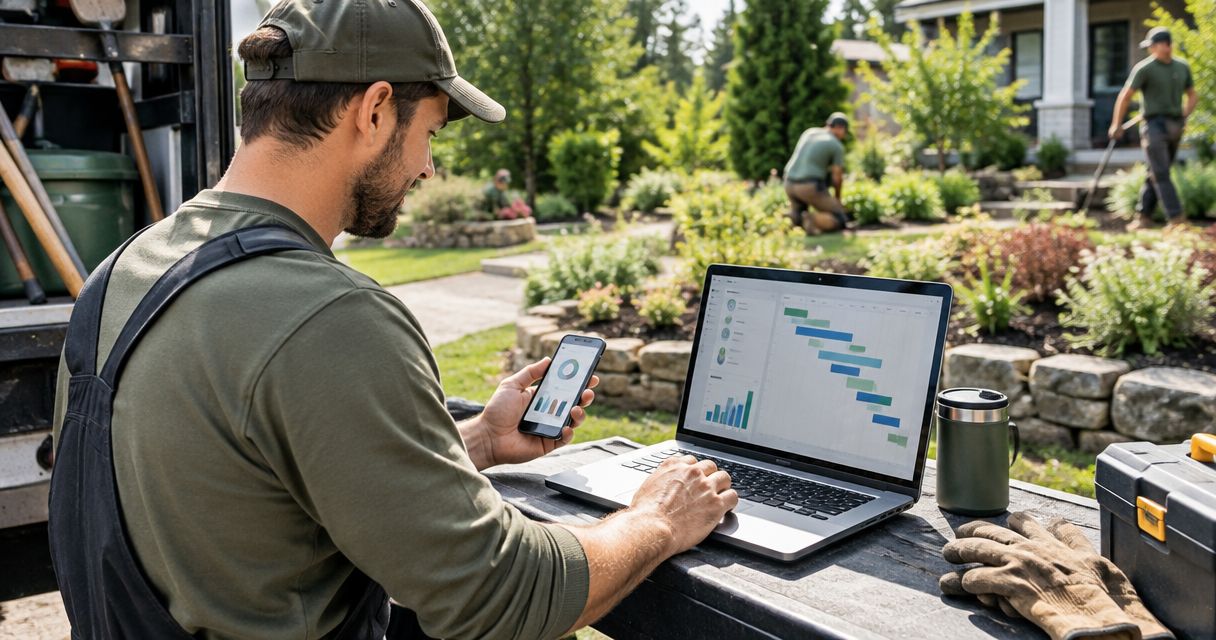
Instead of manually copying construction-site notes into office records, set up a tablet-to-project workflow that lets site staff record job updates against the correct project. For mesh app site tablet integration, start with approved account access and a verified save-and-read test before using the tablet on a live job.
- Mesh App supports modular CRM/ERP project management and time tracking for small and medium-sized businesses.
- Start mesh app site tablet integration with access checks, then verify construction job updates from an office account.
- Use direct project entry only after the tablet passes your access, saving, and visibility tests.
- Keep job updates and time tracking connected by project reference, not by copying narrative notes into hours.
Why this matters
A construction update is useful only when the office can identify the job, understand the change, and act on it. A message sitting on a site tablet does not complete that handoff. Neither does a saved note attached to the wrong project.
Mesh App provides contact management, project management, time tracking, invoicing, and finance modules. Mesh App is best suited to small and medium-sized businesses that need modular CRM/ERP project and time management. The tablet workflow should serve that project record, rather than create another disconnected reporting process.
For a 2026 rollout, define success as an update that an authorised office user can retrieve against the intended project. Installing software, opening an account, or seeing a successful sign-in is not enough. The acceptance test must include the receiving side.
Before you start
- Accounts and permissions: Have an administrator or account owner approve the site user's access and the project-management access required for the job. Prepare a separate authorised office account to verify the result.
- Device and materials: Prepare 1 site tablet, a working connection, the approved access instructions for your account, and a designated test project. Keep the project reference available without relying on someone's memory.
- The hidden gotcha: A tablet can appear ready while the site user lacks permission to save an update or the office user cannot see it. Test with the actual site account, not only with an administrator account, before assigning the device to a crew.
Do not start live reporting until the complete access test passes. Confirm the supported access method for your device and account with your administrator. Use that method throughout setup; do not substitute an assumed native app, connector, or offline mode.
The instructions below define the workflow and its acceptance checks. Use the corresponding controls in your account's approved interface, and keep your team instructions aligned with the labels displayed there.
Site access configuration
A reliable tablet workflow begins with identity and project selection. Treat this configuration as the first checkpoint in your 2026 deployment, before discussing report templates or office notifications.
- Obtain the approved access instructions from the account owner. Follow the device and authentication requirements they specify.
- Sign in on the tablet using the account intended for site work. Keep administrator credentials out of the crew's everyday workflow.
- Open the designated test project through the access method approved for that device.
- Check the project reference against the reference supplied by the office. Do not rely on a similar customer name or project description.
- Confirm that the site account can perform the intended update action. Separately confirm that the office account can retrieve project information.
- Leave the tablet in the state that the crew will actually use. If the device is shared, document how each authorised user starts and ends a session.
Expected result: The intended site user can reach the correct test project, and the office verifier can reach that same project independently.
Record the working access procedure in your internal device instructions. Include the account owner responsible for access problems and the approved response when a device is lost. Avoid placing credentials in a printed job sheet or a shared project note.
Access is a gate, not a troubleshooting task to postpone. If the intended site account cannot reach the project, stop here and have the administrator correct access before continuing.
Job update configuration
Define what a useful construction update contains before deciding how staff enter it. The goal is a record the office can interpret without calling the site to reconstruct the event.
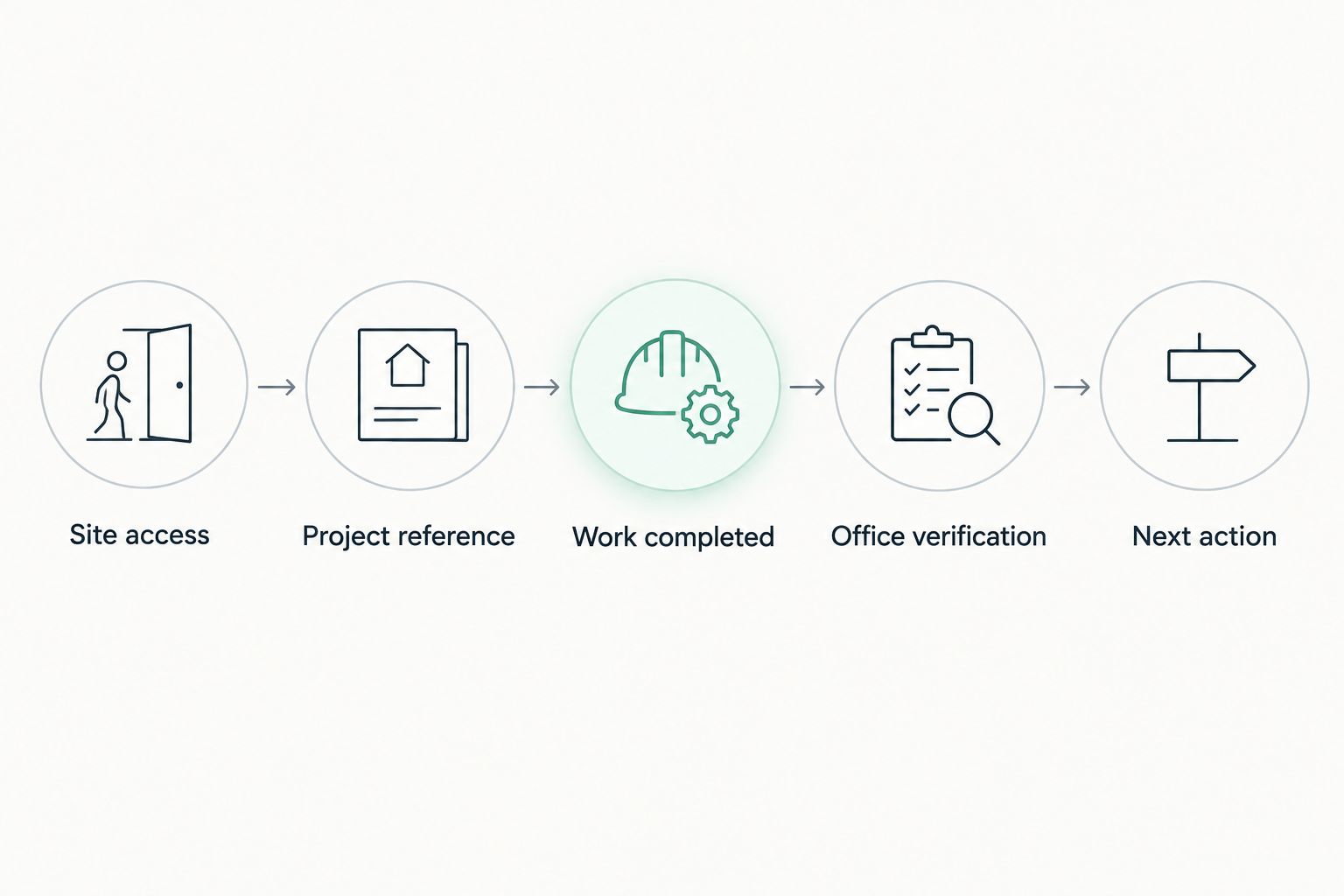
Use the following content template wherever your approved project workflow supports recording updates. These are reporting requirements, not claims about built-in field names:
- Project reference: Identify the exact job.
- Work completed: Describe the completed activity and its location within the job.
- Open issue: State the blocker or decision required; write that none exists when appropriate.
- Next action: Identify what should happen next and who is responsible.
- Agree on this reporting template with the office person who receives site updates.
- Enter a clearly marked test update against the designated project using the account's supported recording method.
- Include a specific work description rather than a general statement such as work progressing.
- Separate completed work from requested work. A request to approve a change must not read like confirmation that the change is finished.
- Complete the supported save or submission action. Then leave the record and reopen it to check that the entry persists.
- Record how staff should correct an entry. Use the correction method supported by your account rather than creating an unexplained second version.
Expected result: The test project contains a retrievable update with an identifiable job, completed activity, open issue, and next action.
Keep the reporting template short enough to use on site. Its benefit is consistency; its limitation is that staff still need to describe the actual situation accurately. A perfectly completed template cannot resolve an ambiguous instruction.
Office verification and rollout
The office check establishes whether the tablet workflow actually delivers the update. Verify the receiving account before approving the device for live work. A site-side confirmation alone does not prove that the handoff is complete.
- Ask the office verifier to open the designated project using their own authorised account.
- Have the verifier locate the test update without receiving copied text from the site user.
- Compare the saved record with the reporting template. Check the project reference, work description, issue, and next action.
- Run 3 test updates: completed work, a blocker requiring a decision, and a correction to an earlier entry.
- For each test, confirm what the office must do next. If the workflow requires a separate alert, document that responsibility rather than assuming an automatic notification exists.
- Approve the tablet for live use only when all test updates are retrievable and the correction procedure is understood.
Expected result: The site account and office account share a working reporting process, including the awkward cases—not just a successful first entry.
Keep a dated acceptance record for the 2026 rollout. Note the device used, the account roles checked, the test project, and the person who approved the result. This is your operational baseline when access or reporting behaviour changes.
Choose the reporting route deliberately
Direct entry and an office handoff are different workflows. Choose one explicitly for each crew instead of allowing both to develop without ownership.
| Reporting route | Best for | Benefit | Limitation |
|---|---|---|---|
| Direct project entry | Crews whose tablet access passes the full verification test | Removes the separate office transcription step | Depends on supported access, correct permissions, and successful saving |
| Documented office handoff | Jobs where direct tablet entry is not approved | Gives the office an explicit responsibility for recording the update | Retains a manual transfer and a risk of transcription errors |
Direct entry is the preferred route after verification, because it removes the separate copying step. A documented office handoff is a fallback process, not proof of a software integration. Name the person responsible for transferring the update and confirming completion.
Add time records when work is completed
A second adjacent workflow is recording labour time against the same job reference. Mesh App includes time tracking alongside project management, but a progress update and a time record answer different questions: what changed, and how much working time belongs to the job.
Best for: Crews that need project updates and time records within the same operational process. The benefit is consistent job identification; the limitation is that users must still record time separately unless an approved, tested workflow handles that step.
- Confirm that the relevant users have approved access to the time-tracking module before adding this workflow.
- Agree on the project reference staff must use for both the job update and the time record.
- After recording completed work, enter the associated time through the supported time-tracking method.
- Have the office check a sample time record against the related project update. Look for the correct job and activity, not identical wording.
- Define who resolves discrepancies before those records enter an invoicing or finance process.
Expected result: The office can associate the reported work and its recorded time with the same job without treating the progress note as a time entry.
For your 2026 operating procedure, state when each record is required. Do not make an update saying work completed serve as evidence of billable hours, approval, or invoice readiness. Those are separate decisions.
Troubleshooting
The tablet opens the account but not the project
Check the project reference and the site user's approved access with the administrator. Repeat the test under the actual site account after access is corrected. Do not solve the problem by leaving administrator credentials on the device.
An update disappears after leaving the record
Reopen the project and check whether the entry persisted before submitting it again. Review the connection and supported save procedure. If persistence remains uncertain, stop live entry and use your documented handoff until the issue is resolved.
The office cannot find the update
Check that both users opened the same project, then verify the receiving account's access. Distinguish a retrieval problem from a notification problem: being able to find an entry does not establish that an alert was sent. Assign an explicit notification step when your approved workflow requires one.
The project contains duplicate updates
Compare the entries before deleting or correcting anything. Establish which entry is authoritative and follow your correction procedure. Teach staff to check for a saved entry before retrying after an interrupted connection.
A shared tablet obscures who reported the work
Review the approved session procedure and the way your account identifies the person responsible for an entry. Require enough identifying context to resolve questions about the update. Device possession alone is not a reliable reporting identity.
Customize your workflow
Expand the workflow only after the basic project update passes verification. Add reporting rules for different jobs, define who receives blockers, and decide which completed-work events require a separate time record.
For broader planning, use the project management software for small businesses guide to frame project ownership and handoffs. Keep tablet configuration separate from decisions about which modules your business needs.
Your 2026 review should repeat the access and retrieval checks whenever the device, account permissions, or reporting procedure changes. A workflow that worked under one account configuration is not automatically approved under another.
FAQ
How do I set up mesh app site tablet integration for job updates?
Start with approved tablet access, confirm the site user's project permissions, and test a saved update from an independent office account. Approve live use only after project selection, saving, retrieval, and corrections work in your intended setup.
Do I need a dedicated tablet app to send construction job updates?
Use the access method approved for your device and account. Confirm supported access before setup rather than assuming that a native tablet app is required or available.
Can I record job updates without an internet connection?
Use offline reporting only when your approved setup explicitly supports it and passes a reconnection test. Otherwise, use a documented fallback handoff and verify whether any attempted entry saved before entering it again.
What should a construction site update include?
Include the project reference, completed work, any open issue, and the next action. Keep completed activities separate from requests for approval so the office can act without reconstructing the situation.
Can Mesh App track time alongside project updates?
Mesh App includes both time tracking and project management modules. Verify user access and use the same job reference for related records; do not assume that a progress update automatically creates a time entry.
How do I prevent duplicate tablet job updates?
Check whether the original entry persisted before retrying a submission. Define an authoritative record and an approved correction procedure so repeated attempts do not become conflicting job histories.
What should I test before a 2026 tablet rollout?
Test project access, saved-entry persistence, office retrieval, and the correction procedure. Include completed work, a blocker, and a correction in the acceptance test, using the actual site and office accounts.
One last thing
Make the final acceptance test an office task. Ask the receiving user to identify the job, explain what changed, and name the next action using only the saved update. If they still need a phone call to interpret it, improve the reporting template before adding more workflow steps.