Instead of copying job times between Mesh App and Google Calendar every day, establish one scheduling source of truth and test any available connection before you rely on it. A Mesh App Google Calendar sync is not confirmed here: use a manual calendar handoff unless your Mesh App account offers a supported connection that passes the checks below.
- Mesh App Google Calendar sync is not confirmed; test any connection before using it for live job scheduling.
- Mesh App suits small and medium-sized teams managing contacts, projects and time; Google Calendar handles shared schedules.
- Without a verified connection, create calendar events from approved Mesh App job details and record changes in both places.
- Test creation, rescheduling and cancellation separately; one successful event does not prove two-way sync.
Why this matters
A job can have a customer contact, project record and time entry in Mesh App while its appointment sits in Google Calendar. If those records disagree, the person doing the work can arrive at the wrong time or work from outdated details. The risk rises when a job changes after it is first scheduled: a calendar event that was correct when created can still be wrong after a reschedule.
Mesh App is best for small and medium-sized teams that need contact, project and time records alongside a controlled job calendar. Its stated modules include contact management, project management, time tracking, invoicing and finance. Those modules do not, by themselves, establish a Google Calendar integration. In 2026, treat calendar connectivity as a feature to verify in your own account, not an assumption to build a scheduling process around.
Decide which record governs each fact before setup. A practical division is to keep the customer and project record in Mesh App, then use Google Calendar to show who is due where and when. If your team chooses a different division, document it. The important point is that staff know which record to correct first when a job moves.
Before you start
- Get access to the Mesh App workspace that holds your job or project records, plus the Google account that owns the intended calendar. If the calendar belongs to a team, confirm that you can add and edit events on it rather than merely view it.
- Choose one non-sensitive test job with an assigned person, a start time, an end time and a clear job reference. Use an example appointment, not a live customer commitment, while you check the workflow.
- Agree on the scheduling owner: the person responsible for creating, changing and cancelling calendar events. The mid-setup trap is permission scope: being able to see a shared Google Calendar does not mean you can write to it, and a successful connection to your personal calendar does not prove the team calendar is connected.
Write down the intended calendar name before connecting anything. Also decide whether job descriptions can contain customer information. Calendar guests can see event details according to the event and sharing settings; keep sensitive notes in the appropriate business record rather than copying them into an invitation without a reason.
Check the connection available in your account
The supplied description of Mesh App establishes its CRM/ERP modules but does not identify a Google Calendar connection, a setup screen or named integration controls. Do not follow instructions that claim a specific Mesh App button exists without checking your own interface. The first setup step is to establish what your account actually supports.
- Open your Mesh App account and inspect its available settings or integration area for an explicitly named Google Calendar connection. Check any product documentation available to your account for the same feature and its stated direction of sync.
- If a supported connection appears, read what it says it transfers. Look specifically for event creation, edits, cancellations, calendar selection and whether changes flow from Mesh App to Google Calendar, the reverse, or both ways.
- If the connection asks you to authorize a Google account, confirm that the account has edit access to the intended calendar before authorizing it. Select the team calendar only if the setup actually offers that choice; do not assume it will use the calendar you had in mind.
- If no supported connection is visible, stop the connection attempt. Use the manual workflow below rather than assuming that project records appear in Google Calendar automatically.
Expected result: you have either a documented connection to test or a clear decision to schedule manually. Neither an authorization screen nor a connected-account label proves that jobs are syncing.
Define the job-to-event handoff
Before creating events, set a short mapping that the scheduler can follow every time. This matters for a direct connection as much as a manual process: if a field does not transfer, someone still needs to supply it. Use these labels as your team’s checklist, not as claims about Mesh App field names.
| Scheduling detail | Business record | Calendar event | Check before sending |
|---|---|---|---|
| Job reference | Keep the agreed reference with the project or job record | Put a recognisable reference in the event title | Can the assigned person find the right record? |
| Start and end | Record the agreed appointment | Set the event start and end | Do both views show the same local time? |
| Assigned person | Confirm responsibility in the business process | Add the intended attendee or use their shared calendar | Can that person see the event? |
| Changes | Update the governing record | Edit or cancel the matching event | Is the old time no longer presented as current? |
For example, you can test with a 45-minute appointment, then move it by 30 minutes and check both views. These are test values, not Mesh App defaults or estimates of a real job. If travel needs to appear on the calendar, add a 15-minute buffer as a separate planning choice rather than silently changing the customer’s appointment time.
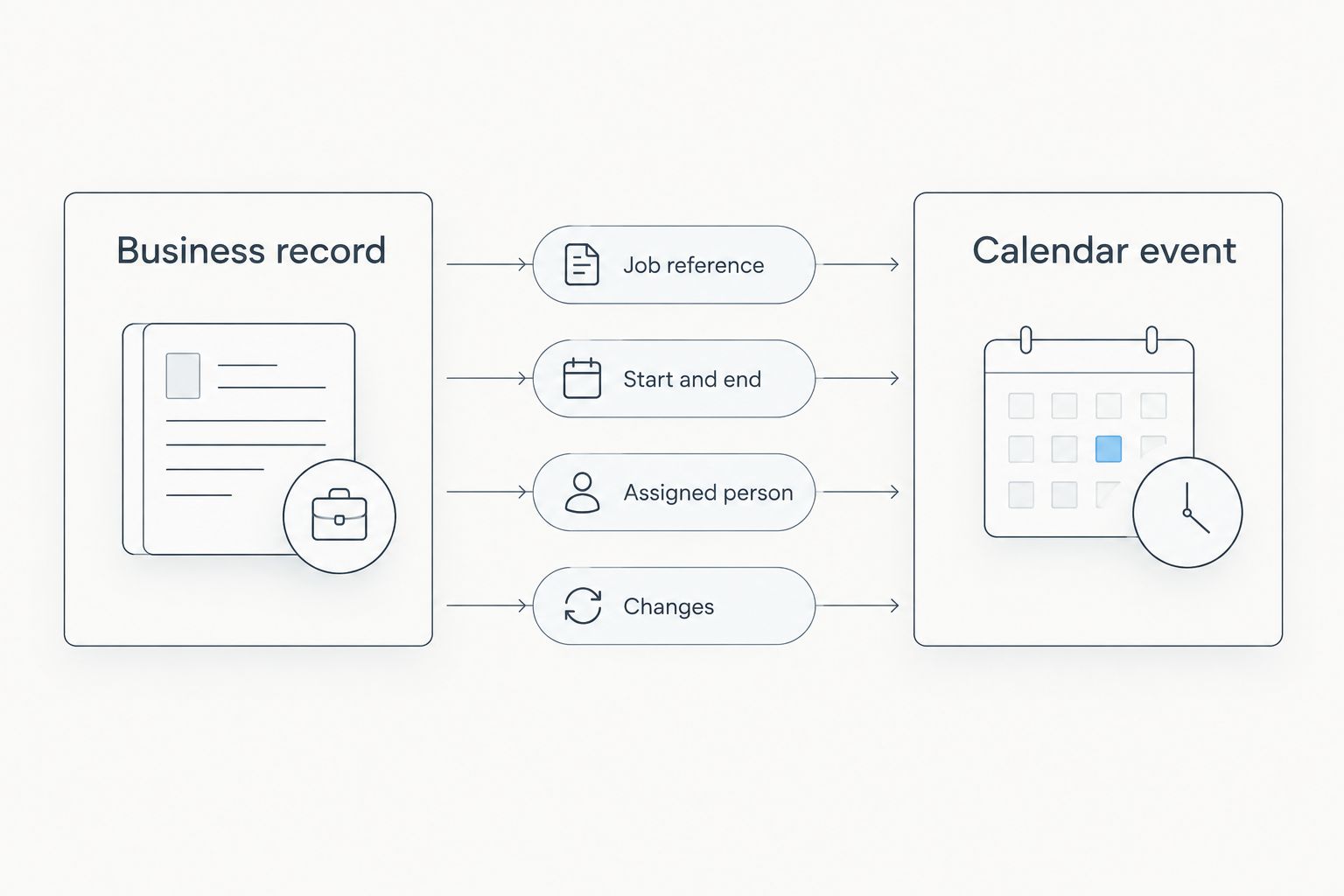
Expected result: anyone scheduling a job can identify the matching calendar event and knows which details to verify. This mapping also gives you a test for a claimed integration: compare actual transferred details against the checklist, rather than judging success by the presence of any event.
Configure the calendar event
If your Mesh App account does not expose a confirmed connection, create the event in Google Calendar from the approved job details. The calendar is then a scheduling view, not an automatically updated copy of the Mesh App record.
- Confirm the job’s agreed time and assigned person in Mesh App. Resolve conflicting information before inviting anyone.
- In Google Calendar, select the calendar your team agreed to use. Choose Create, then Event, and enter the job reference and agreed start and end times.
- Use Add guests if the assigned person should receive an invitation. Review the guest list and event details before selecting Save; avoid putting customer details in a broadly shared event description.
- Return to the business record and note that the calendar event has been created, using whatever existing field or team convention is available. Do not invent a duplicate job solely to record the calendar entry.
- Ask the assigned person to confirm that the event appears on the calendar they actually use. Seeing it in the scheduler’s own calendar is not enough.
Expected result: one identifiable event appears on the intended calendar at the agreed time, and the assignee can access it. If you are testing an actual integration instead, create the test job through the documented trigger and check for that same result without creating a second manual event.
Test changes before calling it a sync
A new event tests only creation. Job scheduling in 2026 also requires an answer for edits and cancellations, especially when the calendar is shared across staff. Test each change with the same non-sensitive example job.
- Move the test appointment in the record your team designated as the scheduling source. Check whether the Google Calendar event changes without manual action. If it does not, edit the event yourself and record that the workflow is manual for reschedules.
- Change the assigned person. Check whether the new assignee can see the correct event and whether the previous assignee still has a stale invitation. Correct both views before treating the reassignment as complete.
- Cancel the test job using your normal business process. Check whether the calendar event is removed, marked cancelled or left in place. If no supported automation handles cancellation, update the event manually.
- For any claimed two-way connection, make a separate test edit in Google Calendar and check whether the business record changes. Do not infer two-way sync from a successful Mesh App-to-calendar test.
Expected result: you can describe exactly which changes transfer automatically and which require a person. Write that distinction into the scheduling procedure. If an event is duplicated during testing, do not keep experimenting with live jobs; identify whether a manual event and an automated event were both created.
Schedule a job whenever its time changes
This adjacent workflow deserves its own rule because a rescheduled job creates more confusion than an unscheduled one. The old calendar slot remains believable until someone removes or edits it.
- Confirm the new time with the person responsible for the job before changing the calendar. Check the local time shown in both systems, particularly when participants work across locations.
- Update the designated scheduling source first. If your verified connection transfers edits, wait for the calendar change and check the event itself. If it does not, open the matching Google Calendar event and change its start and end.
- Notify the assigned person through the event update or your established team process. Check that the former slot is no longer shown as the current appointment.
- If the job moves to another person, review guest access as well as the event time. A correct time on the wrong person’s calendar is still a scheduling failure.
Expected result: one current event represents the job. For 2026 scheduling, make the same check after every material change; an integration that creates events but does not update them is not a complete job-scheduling sync.
Choose the workflow you can verify
A direct connection, a controlled manual handoff and a separately approved automation are distinct options. Only the manual process is described here as executable without proof of an available Mesh App integration. The others become options when your account or an approved tool documents and passes the relevant tests.
| Workflow | Best for | Advantage | Limitation |
|---|---|---|---|
| Verified direct connection | Teams whose Mesh App account explicitly supports the required calendar actions | Reduces repeat entry for actions it actually transfers | Direction, field coverage and change handling still need testing |
| Manual event handoff | Teams without a confirmed connection or with occasional scheduling | Works with an agreed owner and existing access | Every change needs a deliberate update in both places |
| Approved automation | Teams with a documented, permitted way to connect their records and calendar | Can apply a defined trigger and field mapping | Permissions, failures and duplicate-event handling add work |
Do not pick an option because its name sounds complete. Pick it by whether it handles the events your team uses: creation, rescheduling, reassignment and cancellation. A claimed connection that passes only the first check still needs a manual change procedure.
Troubleshooting
- The event appears on the wrong calendar. Check which Google account was authorized and which calendar was selected or used when the event was created. Confirm that the intended shared calendar grants edit access before trying again.
- The scheduler sees the event but the assignee does not. Check the selected calendar, the guest entry and the assignee’s access. Do not treat the scheduler’s view as proof of delivery.
- A reschedule leaves the old appointment visible. Check whether edits are included in the verified connection. If they are not, change the existing event manually rather than creating another event at the new time.
- Two events appear for one job. Check whether a manual event was created alongside an automated one. Keep one scheduling owner and identify which process should create the event before removing the duplicate.
- Times disagree across calendars. Compare the event’s time zone and each participant’s calendar display with the agreed local appointment time. Confirm the actual start with the assignee before sending a customer update.
When an automatic transfer fails, record the affected job reference and the action that failed. Correct the live schedule manually, then investigate the connection. Repeating the same action without checking the calendar can create duplicates.
Customize your workflow
Once the basic handoff works, decide what belongs in a calendar event and what stays in Mesh App. The event needs enough detail for the assignee to identify the work and arrive at the agreed time. Project notes, financial details and other business records need not be copied into every invitation.
Separate scheduling from time tracking, too. A planned event describes when work is expected; a time entry records work according to your team’s process. Mesh App offers time tracking, but the stated product information does not establish that a calendar event becomes a time entry. In 2026, tell staff explicitly whether they must record time after the job.
Set a short exception procedure for changes made outside the chosen source of truth. If a teammate edits Google Calendar directly, the scheduling owner checks the business record and decides whether it also needs an update. If a project owner changes the job record, the scheduling owner checks the calendar. That rule prevents an undocumented edit from becoming a second version of the appointment.
Review Mesh App for your workflow
Check the available modules and confirm calendar options in your account.
FAQ
Does Mesh App sync with Google Calendar in 2026?
A Mesh App Google Calendar sync is not confirmed by the product information provided here. Check your account for a documented connection, then test event creation, edits and cancellation before relying on it.
How do I connect Mesh App to Google Calendar for job scheduling?
First check whether your Mesh App account offers a supported Google Calendar connection and what actions it transfers. If it does not, create events in Google Calendar from approved job details and update both records when plans change.
Will changing a Google Calendar event update a Mesh App job?
Do not assume a Google Calendar edit updates a Mesh App job. Only a verified two-way connection can establish that behaviour; test a calendar-side change using a non-sensitive example.
What should I put in a job calendar event?
Use an identifiable job reference, the agreed start and end, and the intended assignee. Keep sensitive project or customer information out of broadly shared event details unless it is needed and permitted.
Which calendar should a team use for jobs?
Use the calendar your team has designated for scheduling and on which the scheduler has edit access. Confirm that assignees can see events there before placing live jobs on it.
Why is a job showing twice in Google Calendar?
A duplicate can result when someone creates a manual event as well as an automatically created one. Check who created each event and assign one process responsibility for event creation.
Does a calendar appointment create a Mesh App time entry?
A calendar appointment is not proof of a Mesh App time entry. Mesh App offers time tracking, but the stated information does not establish an automatic calendar-to-time-tracking workflow.
One last thing
Test cancellation before your first live reschedule. Teams often check whether a new event appears and stop there, but a cancelled job that still occupies a shared calendar can send someone to work that no longer exists. For 2026 job scheduling, the useful result is not a connected-account message; it is one current appointment that the right person can see and that your team knows how to change.