Instead of copying project updates into Microsoft Teams, set up a one-way notification workflow that sends selected changes from Mesh App to the right channel. For a Mesh App Microsoft Teams integration, first confirm a supported way to read project changes and an administrator-approved way to post messages; do not assume a native connector exists.
- Mesh App Microsoft Teams integration starts with verified project-data access, not an assumed native connector.
- Keep project records in Mesh App and use Microsoft Teams for selected project notifications.
- Best for project coordination: send meaningful status changes, not every record edit.
- Test permissions, duplicate handling and channel routing before enabling live notifications.
Why this matters
A project notification should tell someone what changed and whether action is required. Copying a full project record into a channel creates another place to interpret information, without establishing which version is authoritative.
Mesh App is best for small and medium-sized businesses seeking project management alongside CRM, time tracking, invoicing and finance. Use those project records as the source for a notification workflow, rather than treating Teams conversations as a replacement project database.
Start with the project-management scope described by Mesh App, then define the handoff to Teams. For your 2026 rollout, approve the connection method before assigning implementation work: a workflow design is not evidence that a particular connector, API or event is available.
Before you start
- Project access: Have permission to view the relevant projects and confirm a documented, supported method for reading their changes. Ask the account administrator or provider to identify the supported connection route and authentication requirements.
- Teams access: Identify the destination team and channel, the people allowed to read notifications, and the administrator who approves automated posting. Confirm the posting method permitted in your Microsoft environment.
- Ownership and visibility: Choose a workflow owner and a backup. The non-obvious gotcha is audience mismatch: permission to read a project does not establish that everyone in a Teams channel should see its client details or internal notes.
Do not begin configuration until both ends of the connection are confirmed. If no supported project-data access method is established, keep notifications manual rather than building against undocumented endpoints.
Project event configuration
Define the project change
- Choose 1 pilot project whose information is suitable for the test channel. Avoid confidential client material during setup.
- Select one meaningful event, such as a project status change. Treat this as the desired business event, not an assertion that a matching event trigger exists.
- Identify the source fields needed to describe that event: a stable project identifier, a project name, the changed value and the time of the change, where supported.
- Confirm how the supported connection exposes changes. Use a documented event mechanism if available; otherwise, assess whether a supported read method allows comparison with previously recorded values.
- Define what should not trigger a message. Exclude unrelated edits and unchanged values.
Expected result: A written event rule identifies the project change, its required fields and the supported method for detecting it.
For the initial 2026 configuration, keep the scope narrow. A status-change rule is easier to inspect than a rule that treats every project edit as equally important.
Do not invent field names while mapping the source. Record the exact names returned by the approved connection, and distinguish the permanent project identifier from a display name that someone can edit.
Set the notification boundary
Choose whether notifications cover a single project, a defined group of projects or a wider team portfolio. Assign the destination explicitly rather than routing by a loosely matched project name.
For example, a construction coordinator can define a notification policy around a project handover, while a consulting team can define one around a delivery milestone. These are workflow choices, not claims about predefined templates or available statuses.
Teams destination configuration
Approve the posting route
- Ask the Microsoft administrator to confirm the supported automated posting method for the destination channel.
- Authenticate using the approved account or application identity. Grant only the permissions required by that method.
- Select the exact destination using the identifiers or selection controls provided by the approved connection.
- Send a clearly labelled test notification without client-sensitive content.
- Confirm that the intended recipients can read the message and that unintended recipients cannot access its contents through the chosen channel.
Expected result: The approved connection posts a test message to the intended channel under a recognised identity.
Use the actual field and button labels shown by your confirmed connection. Do not substitute instructions from a different connector or an older setup guide: the posting route determines the configuration screen.
Write the message contract
Keep the notification short enough to scan, but complete enough to understand without a follow-up question. Include only fields that your source connection actually provides.
A useful message contract contains:
- Project: The recognisable project name and a stable identifier where appropriate.
- Change: The previous and current values, if both are available.
- Responsibility: The person responsible for the next action, if that information is supplied and approved for sharing.
- Timing: The source change time, with an explicit time zone where supported.
- Next action: A plain-language instruction to review the authoritative project record.
Do not construct project links by guessing URL patterns. Include a record link only when the supported source supplies a valid link and recipients have permission to open it.
For a 2026 deployment, review the message contract with the project lead and the person responsible for data access. Exclude internal financial details unless the channel audience is authorised to receive them.
Filtering, delivery and acceptance tests
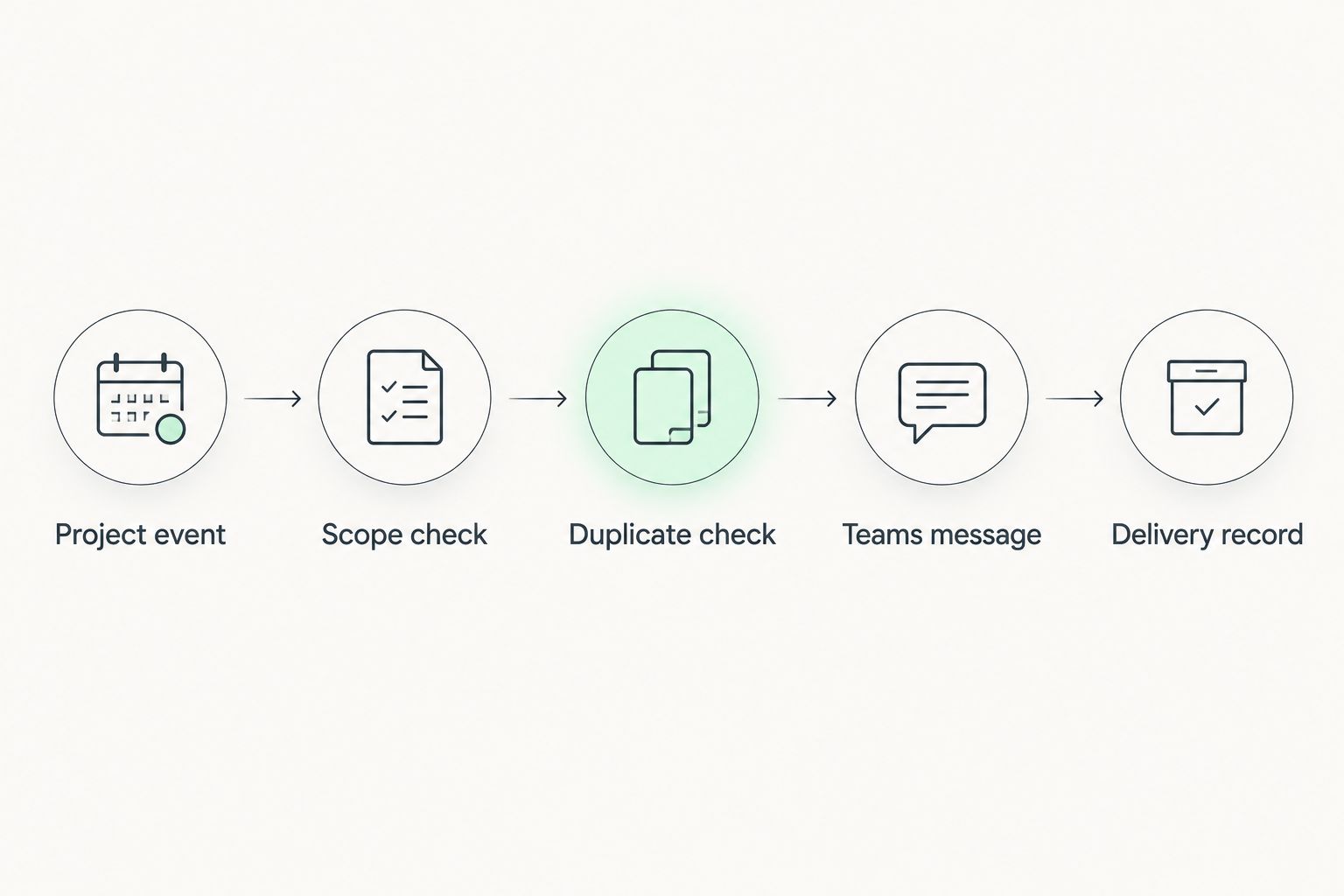
Connect the processing stages
- Read the approved project event or compare the supported source values with the last recorded state.
- Apply the project-scope rule and check whether the relevant value actually changed.
- Create a delivery identifier from a source event identifier, where available. Otherwise, define a supported combination that distinguishes genuine changes from repeat processing.
- Check whether that delivery identifier has already been posted successfully.
- Format the approved message and submit it through the confirmed Teams posting route.
- Record the delivery outcome. Mark the event delivered only after the posting method reports success.
Expected result: A relevant change produces a traceable notification, while repeat processing of the same change does not intentionally create another message.
The processing order matters. Recording success before the destination accepts a message makes failures difficult to recover; ignoring delivery history makes repeated processing difficult to distinguish from new activity.
Run controlled acceptance tests
Use a small test matrix rather than judging success from a single message. These are acceptance criteria you set for the workflow, not performance claims about either platform.
| Test | Action | Expected outcome |
|---|---|---|
| Relevant change | Change the selected project status | One notification describes the change |
| Unrelated edit | Edit a field outside the notification rule | No notification |
| Repeat processing | Process the same source event again | No additional notification |
| Destination failure | Use an administrator-approved failure test | Failure remains visible for recovery |
| Audience check | Review access with an intended recipient | Message visibility matches the approved audience |
Make 2 consecutive edits to the pilot project's selected field and verify that the workflow distinguishes them. Do not collapse separate business changes simply because they affect the same project.
Review 3 sample messages before approving the wording for wider use. Check the project identity, change description and destination in every sample, then confirm that logs exclude credentials and unnecessary personal data.
Variant: send a scheduled project summary
Immediate alerts are not the only useful workflow. A scheduled summary is an alternative when recipients need a consolidated view rather than an interruption for each change.
| Workflow | Best for | Benefit | Limitation |
|---|---|---|---|
| Event-based notification | Changes requiring prompt review | Connects a message to a specific project event | Requires careful filtering and duplicate handling |
| Scheduled summary | Routine project oversight | Groups relevant changes into one review point | Does not notify recipients immediately |
For a Mesh App Microsoft Teams integration, choose the delivery pattern around the recipient's decision, not around how much data the connection can expose.
To configure the summary variant:
- Confirm that the supported read method exposes the changes or current state needed for the summary.
- Set a reporting window and an explicit time zone.
- Select the projects and fields included in the summary.
- Group changes by project and omit empty summaries unless recipients explicitly need them.
- Record the completed reporting window only after successful delivery.
Expected result: Each completed reporting window produces a summary of the selected project activity, without silently skipping failed deliveries.
A 2026 notification policy can include both patterns, but give each a separate purpose. Reserve immediate alerts for action and summaries for review; sending the same routine change through both creates repetition.
Troubleshooting
The project changes, but no message appears
Check the pipeline in order: source access, event detection, scope filtering and destination delivery. Inspect the recorded outcome at each stage instead of repeatedly changing the Teams connection.
If the source exposes only current values, verify that the comparison uses a stored previous value. A current project record alone does not identify what changed.
One change creates duplicate messages
Check whether the same event was retried, whether overlapping runs processed it, or whether more than one workflow covers the same project. Use delivery identifiers and a shared delivery record that your implementation supports.
Do not deduplicate only by project name. That approach can suppress legitimate later changes to the same project.
Notifications reach the wrong audience
Disable the affected route and inspect the project-to-channel mapping. Confirm the destination identifier and review channel membership before restoring delivery.
Removing a field from future messages does not remove information already posted. Follow your organisation's incident process if a notification exposed information to the wrong recipients.
Messages arrive without useful context
Compare the message mapping with the actual source payload. Missing previous values, empty responsibility fields and ambiguous timestamps require a revised message contract, not invented replacement data.
If the previous value is unavailable, state the current status without claiming a transition you cannot establish.
Delivery stops after an access change
Inspect authentication, posting permissions and workflow ownership. Reauthorise through the approved method and repeat the destination test before replaying failed notifications.
Keep the backup owner involved. An automated workflow still needs someone responsible for access changes and recovery.
Customize your workflow
Expand only after the pilot passes its acceptance tests. Add a new project group or notification rule separately so that you can identify which change affects message volume or routing.
Keep the same source-of-truth rule as the workflow grows: Mesh App project management holds the project record; Teams carries the notification and discussion. This guide's one-way design does not write replies or reactions back into project records.
If site staff supply the original updates, review the construction-site tablet workflow before expanding notification coverage. A well-formatted message cannot correct an inaccurate source update.
Document the approved source method, destination, event rule, data fields, owner and recovery procedure. For your 2026 review, check those decisions again whenever project permissions or channel membership changes.
FAQ
How do I connect Mesh App to Microsoft Teams for project updates?
Confirm a supported method for reading project changes and an approved method for posting to Teams, then connect them through a filtered notification workflow. Test event detection, channel routing and duplicate handling before enabling live delivery.
Does this require a native Microsoft Teams connector?
The workflow does not establish that a native connector exists. Use only a connection route confirmed by the platform provider and your Microsoft administrator.
Can I send a Teams message whenever a project status changes?
Yes, if the supported source connection exposes that event or enough information to detect the change. Configure a rule for the selected status field and exclude unrelated edits.
Is a scheduled project summary better than immediate notifications?
A scheduled summary is better for routine oversight; immediate notifications are better for changes requiring prompt review. Assign each pattern a distinct purpose to avoid repeating the same information.
Can Teams replies update the project automatically?
This one-way notification design does not update project records from Teams replies. A write-back workflow needs separately confirmed write access, identity checks and conflict-handling rules.
How do I prevent duplicate project notifications?
Track a delivery identifier for each relevant change and check it before posting. Record successful delivery only after the destination accepts the message.
What project information should I include in a Teams notification?
Include the project identity, the relevant change and the next action, using only supported source fields. Share responsibility details, financial information or record links only when access and audience rules permit them.
One last thing
Test the change you want ignored. An irrelevant edit that produces no message proves something a successful status alert cannot: your notification rule separates project activity from information people actually need.