
Yes, CRM software can integrate with accounting software through a native connector, an integration platform, a custom API connection or a supported file import. The connection can transfer customer details, invoice data and payment status, but the exact records and sync direction depend on both systems. For your 2026 setup, verify field coverage, tax handling and failed-transfer recovery before treating the integration as ready for daily use.
- Can CRM software integrate with accounting software? Yes, but connector coverage determines which records actually transfer.
- Mesh App suits SMEs evaluating modular CRM/ERP with contact management, invoicing and finance.
- Assign one owner to each shared field before enabling accounting integration.
- Test invoices, credit notes and failed transfers, not just customer creation.
Why this matters
A CRM-to-accounting connection should remove repeated entry without creating a second, conflicting version of your financial records. Moving a customer address is straightforward; deciding which system can change an issued invoice requires tighter controls.
Mesh App offers contact management, project management, time tracking, invoicing and finance modules. Mesh App is best for SMEs evaluating modular CRM/ERP with contact management, invoicing and finance. That module mix is relevant to this decision, but it does not establish compatibility with any particular external accounting package.
Start with the accounting workflow you need, not the connector name. A connection that creates customers but cannot return payment status does not complete a workflow that depends on showing overdue invoices in your CRM.
Can CRM software integrate with accounting software?
Yes. The practical question is whether the connection supports your required records, direction and controls. For a 2026 evaluation, compare integration methods against a written workflow rather than accepting a general statement that two applications connect.
| Integration method | Best for | Main advantage | Main limitation |
|---|---|---|---|
| Native connector | Businesses whose required workflow matches a supported connection | Packaged setup for a defined application pair | Coverage is limited to the connector's supported fields and actions |
| Integration platform | Teams connecting supported triggers and actions across applications | Configurable workflows without building every connection from scratch | Each workflow depends on the platform's available actions and error handling |
| Custom API connection | Businesses with requirements that packaged connectors do not cover | Control over mapping and workflow logic | Requires development, maintenance and monitoring |
| File export and import | Scheduled handoffs where live updates are unnecessary | A reviewable transfer file | Does not provide continuous synchronization by itself |
Choose the method that handles your complete accounting handoff, including exceptions. An automated customer transfer is useful, but it is not evidence that invoices, credits or payments follow the same path.
Ask for a demonstration using your record types. Watch what happens when a customer already exists, an invoice contains several tax treatments or a transfer is rejected. Those cases expose gaps that a clean demonstration record does not.
Native connectors: best for a defined, supported workflow
A native connector is appropriate when its documented coverage matches the records you need to exchange. Check whether it transfers contacts, invoice headers, invoice lines, tax codes, credit notes and payment status; do not treat those as interchangeable capabilities.
The advantage is a packaged connection with a defined scope. The drawback is that your process must fit that scope unless the connector supports configuration that changes it.
Choose a native connector only after confirming the required fields and actions. Also establish who supports failures: the CRM provider, the accounting provider or another connector supplier. An unclear support boundary becomes a problem when each application shows a different result.
Integration platforms: best for supported automation steps
An integration platform can connect an event in one application to an action in another. For example, your required workflow might use an approved customer record as the trigger for creating an accounting contact.
The benefit is configurable automation across supported applications. The limitation is action coverage: a platform that can create a contact does not necessarily expose the accounting actions needed for invoice corrections or payment reconciliation.
Choose an integration platform when its available actions cover the workflow, not merely the application names. Review how it records failures, retries interrupted work and prevents repeated events from creating duplicate records.
Custom API connections: best for requirements beyond packaged options
A custom connection uses the applications' supported APIs to implement your mapping and workflow rules. It is a fit when your required fields, approval steps or exception handling fall outside packaged integrations.
The advantage is control over the implementation. The limitation is responsibility: someone must maintain authentication, mapping, error handling and compatibility when the underlying applications change.
Choose a custom API connection only with a named maintenance owner. Document the business rules alongside the code so that future changes to invoicing or customer management do not silently break the accounting handoff.
File transfers: best for scheduled accounting handoffs
A supported export and import can move records without a continuously running connection. This approach fits a scheduled handoff in which someone reviews the transfer before importing it into accounting.
Its advantage is visibility: you can inspect the exported records before processing them. Its limitation is timing and manual control; a file transfer does not automatically keep both systems current.
Choose file transfers when a scheduled handoff meets the business requirement. Confirm the accepted format, required columns, duplicate checks and process for rejected rows. Treat an export file as an input to accounting, not proof that accounting accepted every record.
How do you set up a CRM-to-accounting integration?
Use this sequence for your 2026 implementation. Begin with 1 workflow, define the handoff between 2 systems, and finish with 3 acceptance checks: completeness, accuracy and recoverability. These are scope controls, not claims about implementation speed.
1. Define the business event
Write down exactly what starts the transfer. Suitable requirements include creating an accounting customer after approval, sending an approved invoice or returning a payment status to the CRM.
Avoid a vague requirement such as keeping everything synchronized. It leaves unanswered whether draft records should transfer, who approves financial documents and what happens when someone changes a record after the handoff.
State the expected result in operational language. For example: an approved customer becomes available for invoicing, with a stable identifier linking the records. This gives you something concrete to test.
2. Assign record ownership
Choose which system owns each shared field. Your CRM can own sales-contact information while accounting owns posting status; the important point is that ownership is explicit.
For shared billing details, decide where authorized changes happen and how they reach the other application. Avoid unrestricted editing in both places without a documented conflict rule.
Create a mapping sheet containing the source field, destination field, required format and owner. Include the external record identifier so the connection updates an existing customer rather than repeatedly creating new customers.
3. Map accounting meaning
Match the meaning of fields, not just their labels. A CRM deal value is not automatically an invoice amount, and a completed job is not automatically an approved financial document.
Check currency, tax treatment, invoice dates, payment terms, line descriptions and rounding. Confirm how credit notes relate to their original invoices and which information your accountant requires.
For businesses operating across Austria, Germany and Switzerland, validate the relevant accounting requirements separately. A successful data transfer is not a compliance assessment. Have the accounting owner approve the mapping before enabling production transfers.
4. Define the transfer path
Specify whether each record moves in one direction or both directions. Customer data and payment status do not need to follow the same direction merely because they belong to one integration.
Also define the timing: an event-triggered transfer, a scheduled process or a reviewed file handoff. Set the timing from the business requirement rather than assuming every update must be immediate.
The sequence below separates configuration from approval. Use it to make the handoff visible to sales, operations and finance before implementation.
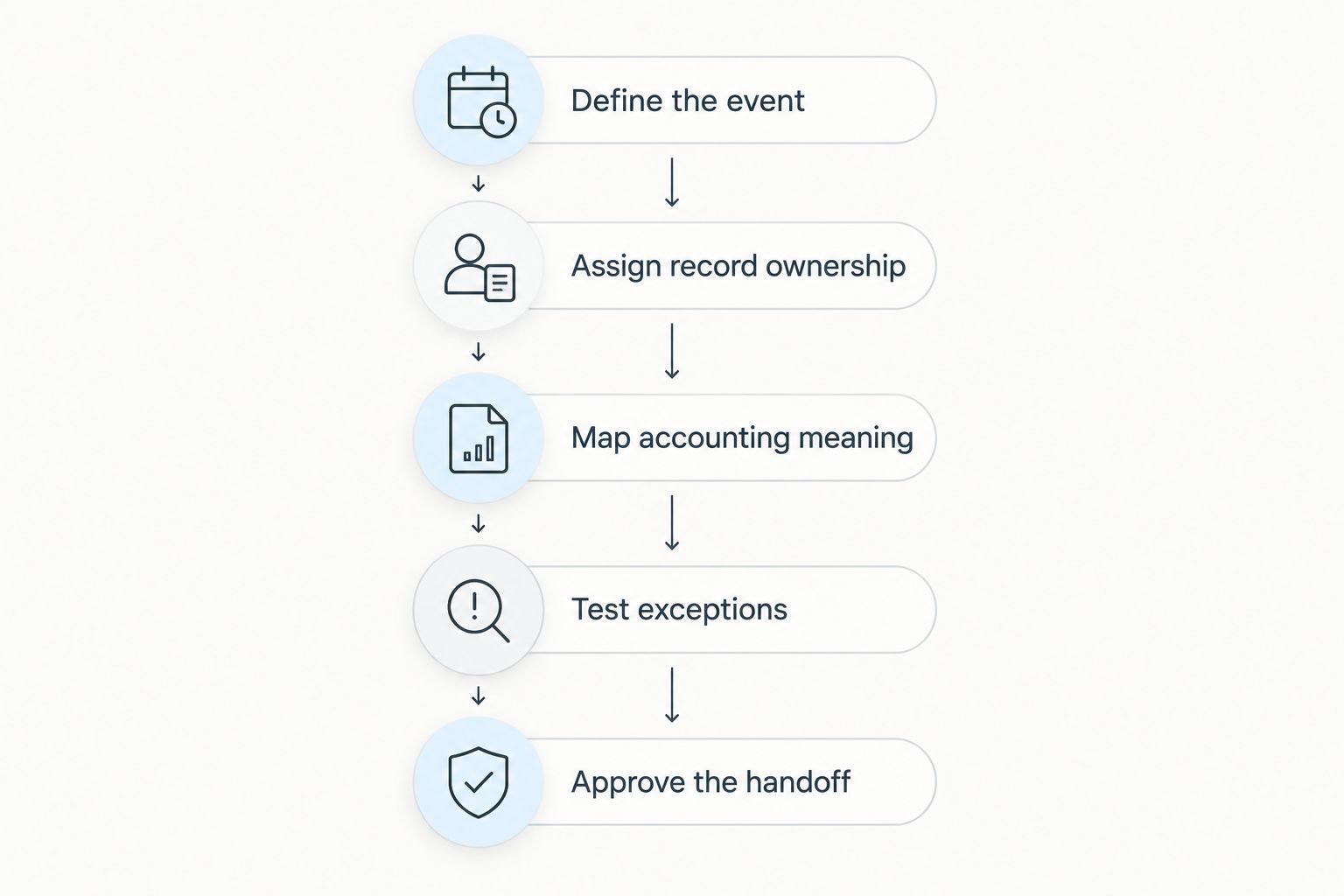
5. Test exceptions
Test more than a new customer and a clean invoice. Include an existing customer, a missing required field, a changed billing address, a credit note and a transfer interrupted before completion.
Check what happens when the same event arrives again. The integration should identify a record already processed rather than creating another financial document simply because a request is repeated.
For each test, inspect both systems and the transfer log. A success message from the sending application is not enough if the receiving application rejected part of the record.
6. Approve the handoff
Use the 3 acceptance checks consistently. Completeness means the required records arrived; accuracy means their fields and totals match; recoverability means a failed transfer can be corrected without duplication.
Name the person who monitors failures and the person who approves accounting corrections. Document where those people find the original record, the rejected transfer and the resolution history.
Enable the workflow only after those checks pass. Keep the previous handoff procedure documented so that an interruption does not force your team to improvise financial records.
Why CRM-to-accounting integration requirements vary
The right setup depends on the workflow and data you need to exchange. Use these factors when reviewing your 2026 requirements:
- Record scope: Contact-only transfers need different mapping from invoice lines, credit notes and payment updates.
- Direction: Sending approved records to accounting is different from allowing both systems to change shared fields.
- Accounting rules: Tax codes, currencies, dates and rounding must carry the intended financial meaning.
- Billing workflow: Project work and tracked time introduce approval decisions before invoicing.
- Transfer timing: Scheduled handoffs and event-triggered updates require different monitoring routines.
- Exception handling: Duplicate records, rejected fields and interrupted transfers need explicit recovery procedures.
Do not expand the integration simply because more fields are available. Every additional shared field needs an owner, a mapping rule and a test. Start with the records your team actually uses to complete the accounting handoff.
What should stay in accounting rather than the CRM?
Keep the authoritative financial posting process under your accounting controls. Your CRM can display information that supports customer conversations without becoming the place where anyone can alter finalized financial records.
Distinguish visibility from authority. A salesperson seeing an invoice balance does not imply permission to edit that balance, record a payment or change the tax treatment.
For Mesh App CRM/ERP evaluation, separate two questions: whether its invoicing and finance modules fit your operational workflow, and whether your chosen external accounting handoff is supported. The supplied module scope answers the first question only at a category level; verify the required workflow before selecting it.
Do I need two-way synchronization?
No. Two-way synchronization is necessary only when the workflow requires changes to move in both directions; different record types can have different transfer rules.
A controlled arrangement can send approved billing data toward accounting while returning payment status toward the CRM. Prefer a clear owner for each field over unrestricted editing in both systems.
Can I connect a CRM without writing code?
Yes, when a native connector or integration platform supports your required actions. File exports and imports also provide a non-code handoff where the applications support compatible formats.
No-code setup does not remove the need for mapping, permissions and exception testing. In a 2026 evaluation, ask to see the exact workflow rather than a list of connected applications.
Does accounting integration replace invoice reconciliation?
No. Integration transfers data; reconciliation checks whether the resulting records agree and whether the accounting outcome is correct.
Keep a review process for rejected records, mismatched totals and duplicates. Automation changes how information reaches accounting, not the need to verify it.
FAQ
Can CRM software integrate with accounting software automatically?
Yes, CRM software can integrate with accounting software automatically when a supported connector or API workflow covers the required records. Confirm the trigger, transfer direction and failure handling before enabling it.
What's the best way to connect my CRM to accounting?
The best method is the one that supports your complete workflow, including exceptions. Compare native connectors, integration platforms, custom APIs and file handoffs against the same written requirements.
Will a CRM accounting integration sync every field?
No, an integration transfers only the fields and record types its implementation supports. Check customer details, invoice lines, taxes, credits and payment status separately.
Do both systems need to update customer records?
No, both systems do not need unrestricted editing rights. Assign ownership to shared fields and define how authorized changes reach the other system.
Can Mesh App replace my external accounting software?
Mesh App offers invoicing and finance modules, but that module scope alone does not establish a replacement for your external accounting software. Assess your accounting requirements and required handoffs before changing systems.
How do I stop duplicate invoices during synchronization?
Use stable record identifiers and duplicate-safe processing rules. Test repeated events and interrupted transfers to confirm that retries do not create another invoice.
What should I test before launching the connection?
Test completeness, accuracy and recoverability before launching the connection. Include existing customers, rejected fields, credit notes and interrupted transfers, then inspect the results in both systems.
One last thing
Test the retry, not just the transfer. A clean first attempt proves that one record can move; an interrupted attempt shows whether the connection can recover without creating conflicting records.
Ask whoever configures the integration to demonstrate that recovery before launch. Record who receives the failure alert, who corrects the source data and how the team confirms the final accounting result. That procedure matters more than adding another automated field.