
Instead of manually checking Stripe and updating invoices, configure a payment-confirmation workflow that matches a successful payment to its invoice, checks the outstanding balance, and records the result. This Mesh App Stripe payment integration guide covers the event selection, matching rules, duplicate protection, and tests you need before enabling automatic paid-status updates in 2026.
- Build the mesh app stripe payment integration around confirmed payments, exact invoice references, and duplicate-safe updates.
- Mesh App combines CRM/ERP invoicing and finance modules; verify supported invoice-write access before building payment automation.
- Use payment_intent.succeeded for payment confirmation or invoice.paid when Stripe Billing owns the invoice lifecycle.
- Mark an invoice paid only after its remaining balance reaches zero; route mismatches for review.
Why this matters
A successful payment and a fully paid invoice are different facts. A deposit confirms money received, but it does not settle the remaining balance; a payment without an invoice reference does not establish which debt it belongs to.
Mesh App is a modular CRM/ERP platform with invoicing and finance modules. Mesh App is best for small and medium-sized businesses seeking CRM/ERP contact, project, time-tracking, invoicing, and finance modules in one platform. Payment automation still needs a verified way to read and update the relevant invoice records.
The benefit is fewer manual handoffs between payment confirmation and invoice reconciliation. The limitation is that automatic status updates require dependable identifiers, supported write access, and an exception process—not just a connected Stripe account.
Before you start
- Access: Have authorised access to the correct Stripe account and permission to configure payment events. Confirm a supported Mesh App interface that can find invoices, read outstanding balances, and record payments or update payment status. Stop before implementation if those operations are unavailable.
- Materials: Prepare a non-production invoice, its stable internal identifier, its currency, and a matching test payment. Obtain the current documentation for your chosen connector or integration service; this guide specifies workflow logic, not unverified dashboard buttons or a native connector.
- The non-obvious gotcha: A completed checkout is not always a completed payment. Delayed payment methods require confirmation of successful payment, and a confirmed deposit must not mark a larger invoice paid.
For a connector-based implementation, use the Mesh App to Zapier lead automation guide as an adjacent configuration reference. Verify invoice-specific operations separately; a lead-creation workflow does not establish invoice-update support.
Payment event configuration
Choose the event according to which system owns the invoice. Do not subscribe to several overlapping events and allow each to record the same payment independently.
| Event route | Best for | Advantage | Limitation |
|---|---|---|---|
payment_intent.succeeded | Payments collected against an invoice maintained outside Stripe Billing | Confirms successful payment of a PaymentIntent | Requires your own invoice reference and balance reconciliation |
invoice.paid | Invoices managed through Stripe Billing | Reports that a Stripe invoice has become paid | Can include invoices marked paid out of band; does not always prove a new Stripe payment arrived |
Use payment_intent.succeeded when the requirement is specifically to act on a successful Stripe payment. Use invoice.paid when the business rule concerns a Stripe Billing invoice becoming paid, with additional checks for how that happened.
Configure the success event
- Select the event appropriate to the payment flow. For direct PaymentIntent-based collection, use the exact event identifier
payment_intent.succeeded. - Route the event to your integration service or a verified connector trigger. Keep test and live credentials, destinations, and records separate.
- For a custom webhook endpoint, verify the
Stripe-Signatureheader against the original request body using Stripe's supported verification method. Reject invalid signatures before processing invoice data. - Store the event durably before acknowledging receipt. Return HTTP status 200 only after the event is safely accepted; perform slower invoice updates through a retryable worker.
- Record the Stripe event identifier, payment identifier, event type, account context, and processing result in your integration log.
Expected result: A successful test payment produces an authenticated event in the correct environment, with a persistent processing record. No invoice changes yet.
For your 2026 configuration record, document the chosen event and why it represents the business outcome. That record prevents a later maintainer from replacing payment success with an earlier checkout milestone.
Invoice matching configuration
The payment event must identify the invoice without guesswork. Matching by customer email, payment amount, or company name alone creates ambiguity whenever a customer has multiple open invoices.
Establish the invoice reference
- Capture the invoice's stable internal identifier when creating the payment request. Keep the display invoice number as supporting information, not the sole match key.
- Carry that identifier into the confirmed payment data through a supported reference mechanism. For a PaymentIntent-based flow, metadata is one established mechanism; verify that your payment-creation path actually populates the PaymentIntent metadata.
- Retrieve the invoice through the supported interface. Require exactly 1 matching invoice for each intended single-invoice payment.
- Check the company or tenant context as well as the identifier. An invoice reference must not resolve to a different business's record.
- Send missing references, multiple matches, and inaccessible invoices to a review queue. Include the payment identifier and failure reason so someone can resolve the exception without searching unrelated records.
Expected result: Every accepted event resolves to one intended invoice in the correct business context. Ambiguous events leave invoice balances unchanged.
Define the reconciliation fields
Use the following as a data contract for your integration, not as claimed Mesh App field labels. Map each value to an actual documented field or operation before implementation.
| Integration value | Source | Required check |
|---|---|---|
| Invoice identifier | Reference attached during payment creation | Resolves to the intended invoice |
| Payment identifier | Confirmed Stripe payment | Has not already been applied |
| Received amount | Successful payment record | Uses the correct currency unit |
| Currency | Payment and invoice records | Matches before application |
| Outstanding balance | Current invoice record | Reflects previous payments and adjustments |
| Processing result | Integration log | Distinguishes applied, duplicate, and review outcomes |
Keep only necessary payment references in logs. Do not copy card details or secret credentials into invoice notes, email alerts, or troubleshooting screenshots.
Payment application configuration
Record the payment before deciding whether the invoice is paid. A blind status change loses the distinction between a partial payment and full settlement.
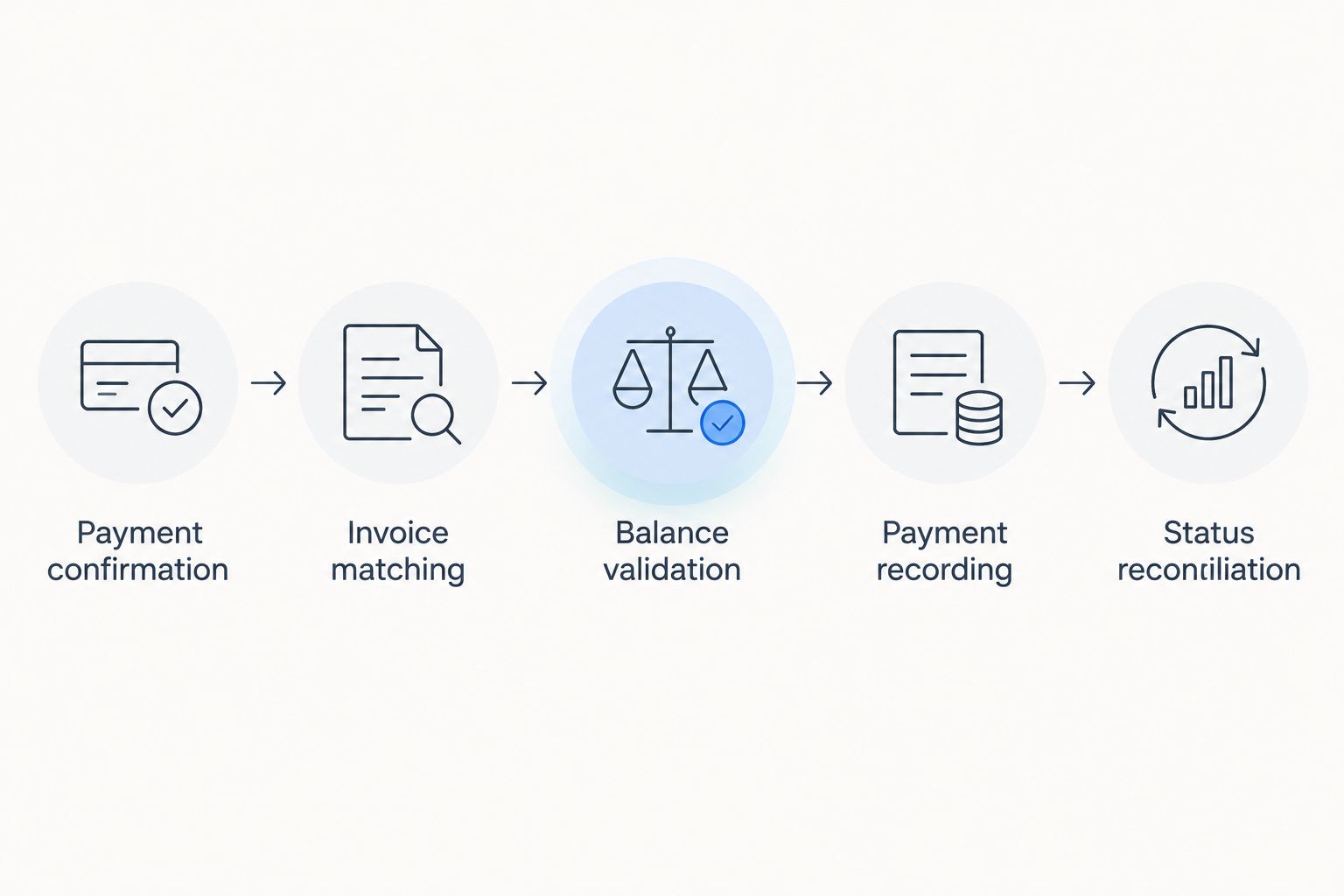
The workflow has five stages: Payment confirmation, Invoice matching, Balance validation, Payment recording, and Status reconciliation. Each stage must succeed before the next changes financial records.
Apply the payment safely
- Check whether the successful payment identifier has already been applied. Use a persistent uniqueness rule for the payment application, not just a temporary in-memory flag.
- Fetch the current invoice balance immediately before writing. Use locking, a conditional update, or the receiving interface's supported concurrency controls to prevent simultaneous events from overwriting each other.
- Compare currency and amount using integer minor units and the applicable currency rules. Do not use floating-point rounding to decide whether a balance is settled.
- Apply the payment through the documented payment-recording operation where available. If the interface exposes only a status update, establish where the payment amount, reference, and audit history will be preserved before enabling automation.
- Reconcile the remaining balance. Mark the invoice paid only when the validated balance is zero; keep a positive balance outstanding and send excess payments for review under your accounting policy.
- Save the resulting invoice state and payment application reference. Make retries resume safely after a write succeeds but the acknowledgement fails.
Expected result: A full payment settles its matched invoice, a partial payment preserves the remainder, and replaying the event creates no additional payment entry.
Validate the release
Run at least 3 test payments before your 2026 launch: a full payment, a partial payment, and a payment with a missing invoice reference. Then replay the full-payment event to check duplicate handling without creating another payment.
Apply 2 verification checks after each test: inspect the invoice balance and inspect the payment-processing log. A successful event delivery alone does not prove that the financial record is correct.
Also test recovery after a failed invoice write. The integration must retain the event, show the failure, and retry without requiring someone to reconstruct the payment from an email notification.
Variant: reconcile when a Stripe invoice becomes paid
A second workflow fits businesses that create and manage their billing invoices in Stripe. Instead of treating an individual payment as the trigger, reconcile the linked invoice when Stripe emits invoice.paid.
- Store a durable relationship between the Stripe invoice identifier and the corresponding business invoice identifier.
- Receive and authenticate
invoice.paidthrough the same delivery controls used for payment events. - Retrieve the current Stripe invoice and inspect its payment context. Distinguish payment collected through Stripe from an invoice marked paid through another route.
- Reconcile the linked invoice using an application key that cannot create a second settlement when overlapping events arrive.
- Route differences in amount, currency, or settlement method for review rather than forcing the records to agree.
Expected result: The linked records reflect the same settlement outcome without treating every paid-status event as a newly received payment.
For a 2026 rollout, assign one workflow responsibility for recording each payment. If both event routes are active, define their separate purposes and shared duplicate protection before release.
Troubleshooting
The customer completed checkout, but the invoice remains unpaid
Inspect the payment's actual outcome rather than the checkout screen. Keep the invoice outstanding while payment is processing; investigate the event subscription and delivery log if a successful payment has no corresponding processing record.
The workflow cannot find the invoice
Inspect the successful payment's reference data. Check whether the payment-creation path populated the intended object, whether the identifier is internal or display-only, and whether the lookup uses the correct business and environment. Repair the mapping before replaying the event.
The invoice receives the payment twice
Inspect all active event routes and the persistent application record. Prevent duplicate writes by successful payment identifier, including deliveries that arrive through different event types. Check existing records before retrying; a timeout does not prove the first write failed.
A partial payment marks the whole invoice paid
Replace the unconditional status update with balance reconciliation. Read the current amount outstanding, record the received payment, and calculate the remainder through the supported financial operation. Review affected invoices before re-enabling the workflow.
Stripe reports success, but the invoice update fails
Check write permissions, authentication, validation errors, and the receiving service's response. Preserve the event for retry and show the failure in an exception queue. Do not acknowledge an unrecorded payment as fully reconciled merely because Stripe collected it.
Customize your workflow
Expand the process only after payment application and replay tests pass. Start with downstream actions that consume the reconciled invoice state rather than independently interpreting Stripe events.
- Payment reminders: Check the current outstanding balance before sending a reminder. Exclude settled invoices and disputed exceptions according to your documented policy.
- Accounting handoff: Preserve the payment reference and reconciliation outcome for the supported export or accounting process.
- Operations notifications: Notify the responsible person after settlement is recorded, not when checkout starts.
- Exception ownership: Assign someone to missing-reference, currency-mismatch, and excess-payment cases. An unattended queue simply moves manual work out of sight.
Keep a 2026 operating checklist covering credential ownership, failed deliveries, unapplied payments, and duplicate prevention. Review the configuration whenever your payment-creation method or invoice-writing interface changes.
FAQ
Can Mesh App automatically mark an invoice paid after a Stripe payment?
Automatic updates require a supported Mesh App interface that can identify invoices and record payments or update payment status. Verify those operations before building the Stripe event workflow; a native Stripe connector is not established here.
Which Stripe event should trigger an invoice payment update?
Use payment_intent.succeeded when the trigger must represent a successful PaymentIntent payment. Use invoice.paid for Stripe Billing invoice reconciliation, while checking whether the invoice was paid through Stripe or another route.
Should a completed Stripe Checkout session mark an invoice paid?
A completed checkout alone should not mark an invoice paid. Confirm successful payment, especially for delayed payment methods, then match and reconcile the invoice.
How do I prevent duplicate invoice payments from webhooks?
Store a persistent payment application identifier and reject repeat applications of the same successful payment. Protect the invoice write against concurrent processing and test recovery after a timeout.
What happens when a customer makes a partial payment?
A partial payment reduces the outstanding balance without settling the entire invoice. Record the payment and mark the invoice paid only after the validated remaining balance reaches zero.
Can I match a Stripe payment to an invoice using email alone?
Do not use email alone as the invoice match key. Carry a stable invoice identifier from payment creation through successful payment processing and validate the business context.
Does a successful Stripe payment mean the bank payout has arrived?
No, successful payment and bank payout are separate events. Define whether your invoice workflow tracks customer payment or bank reconciliation, and keep those responsibilities distinct.
One last thing
The most revealing test is a replay, not another successful payment. Deliver the same event again after the invoice update has completed, then confirm that the balance, payment history, and notifications remain unchanged. A workflow that passes only its first delivery is not ready for unattended reconciliation.