
Yes, a CRM can automate lead follow-up emails when it includes email workflows or connects to an email automation service: a defined event starts the workflow, conditions select eligible leads, and scheduled actions send the messages. In 2026, the deciding requirements are not just automatic sending but reliable reply detection, stop rules, and a clear handoff to the person responsible for the lead.
- Can a CRM automate lead follow-up emails? Yes, with suitable email workflows or a connected sending service.
- Choose CRM follow-up automation that checks replies and eligibility before every send.
- Mesh-Web suits smaller businesses seeking modular CRM and ERP functions; assess email automation separately.
- Start with one inquiry workflow, test its stop rules, and expand only after checking the results.
Can a CRM automate lead follow-up emails?
A CRM can automate follow-up, but contact management alone does not establish that it can send email sequences. Check the exact workflow capabilities, sending connection, and exclusions before choosing your setup.
There are 3 approaches to compare. Each handles a different balance of convenience, control, and personal review.
| Approach | Best for | What it does | Advantage | Limitation |
|---|---|---|---|---|
| Native CRM workflows | Teams wanting follow-up managed inside the CRM | Uses CRM records and supported triggers to schedule email actions | Keeps workflow management close to lead records | Available actions and reply handling depend on the product |
| Connected email automation | Teams needing email functionality outside their CRM | Passes eligible contacts and events to a connected sending service | Separates contact management from email execution | Requires reliable synchronisation and suppression handling |
| CRM task reminders | Sensitive or complex sales conversations | Reminds the lead owner to review and send a message | Preserves human judgement before sending | Does not automate the email itself |
For service businesses, the starting point is the enquiry and its owner, not a long sequence. The CRM software for service businesses guide provides related context for organising that work.
Why this matters
An unattended lead and an unwanted follow-up are different problems. Automation should prevent the first without creating the second.
A prospect who has already replied should not receive a message asking whether they saw your previous email. A lead assigned to a salesperson also needs a clear handoff, so the automated sequence and the salesperson do not run competing conversations.
For a 2026 rollout, define success as appropriate follow-up with an accountable owner, not simply more messages sent. That definition gives you a practical way to judge both software and workflow design.
How do you set up automated lead follow-up?
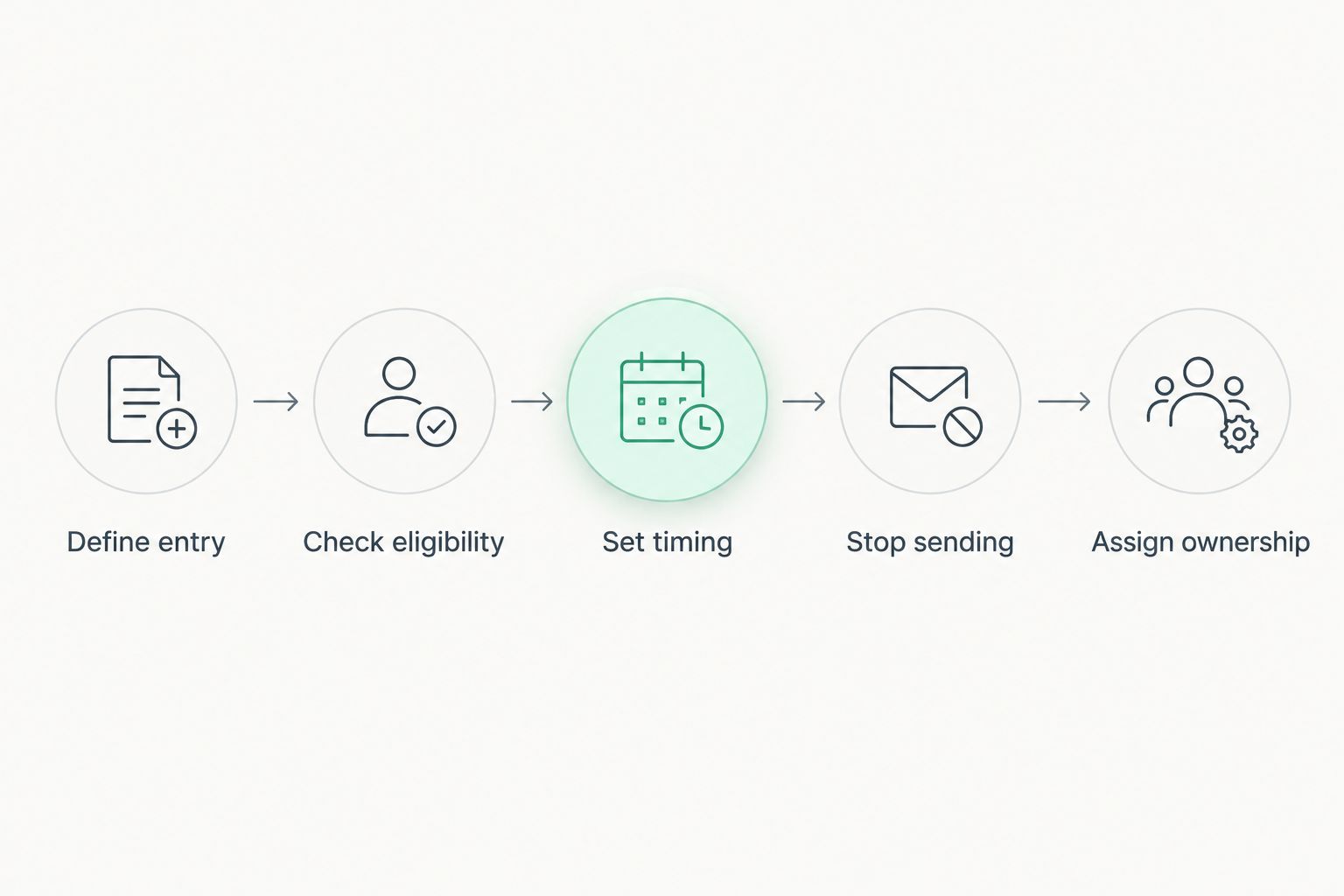
Use these 5 steps as a configuration and acceptance checklist. The labels describe what your workflow needs to accomplish, not a promise that every CRM supports each action.
1. Define entry
Choose the event that makes a lead eligible: an enquiry submitted through a form, a manually approved contact, or a specific sales-stage change. Do not enrol every new database record automatically; an imported supplier or existing customer is not necessarily a sales lead.
Write the entry rule in plain language before building it. For example: enrol a new service enquiry only after its source, contact details, and responsible owner have been checked.
2. Check eligibility
Decide which records must stay out of the workflow. Exclusions should cover recorded objections, unsubscribed contacts, invalid addresses, duplicate enrolments, and leads already in an active conversation.
Review the applicable email-marketing and data-protection requirements for your recipients. A CRM record is an organisational record, not automatic permission to send a marketing sequence.
3. Set timing
Specify when each message becomes eligible to send and which conditions must still hold at that moment. Use the lead's stage and conversation history rather than treating elapsed time as the only signal.
For example, a requested proposal follow-up should not proceed if the proposal has not actually been sent. A booked conversation should change the workflow rather than leave the original sequence running unchanged.
4. Stop sending
Define the events that pause or end the sequence. Include a reply, an objection, an unsubscribe request, a relevant stage change, and a manual pause by the lead owner.
Check stop conditions immediately before each send. Checking eligibility only when the lead enters the workflow does not protect against changes that happen later.
5. Assign ownership
Name the person responsible for replies, exceptions, and stalled leads. Decide where failed sends and incomplete records appear, and who reviews them.
Keep a human route for conversations that no longer fit the template. Automation should remove routine administration, not make it harder for a prospect to reach the right person.
Native workflows: best for keeping follow-up inside the CRM
Choose native workflows when your CRM supports the sending actions, record updates, and stop conditions your process requires. Keeping those controls together gives the lead owner one place to review the intended workflow.
The limitation is feature scope. A CRM can offer templates or email logging without supporting conditional sequences, reply-based stops, or the sending behaviour you need.
During evaluation, ask the supplier to demonstrate the entire path from enquiry to reply. Watching a scheduled message send is not enough; watch what happens when the prospect answers before the next message.
Connected automation: best for separating CRM and email execution
Choose a connected service when the CRM remains your contact record but another system handles email workflows. Specify which system controls enrolment, sending, replies, and suppression before connecting them.
The main trade-off is coordination. A contact marked as ineligible in the CRM must not remain active in the sending service, and a reply received elsewhere must reach the workflow's stop logic.
For your 2026 evaluation, test updates in both directions rather than accepting a successful contact transfer as proof of a complete integration. Sending data and keeping its meaning consistent are separate requirements.
Task reminders: best for judgement-heavy conversations
Choose task reminders when each follow-up needs a person to check scope, wording, or the latest discussion. Consulting enquiries, bespoke construction work, and complex IT projects can involve details that deserve review before a message leaves the business.
The benefit is control; the limitation is that someone still has to act. A task queue with no owner or review habit does not solve missed follow-up.
Use a draft template to reduce repetition, then let the owner decide whether to send it. This is a useful alternative when automatic sending introduces more risk than convenience.
Why CRM follow-up automation varies
The right setup depends on the process you need to support, not the presence of an automation label. Compare these factors against your actual enquiry handling:
- Trigger coverage: Check whether the workflow can start from the event you use, such as an approved enquiry or a sales-stage change.
- Sending connection: Establish which mailbox or service sends the message and where the resulting correspondence appears.
- Reply detection: Verify how replies stop the workflow, including replies received outside the expected thread.
- Record quality: Missing owners, duplicate records, and outdated stages weaken the conditions that decide who receives follow-up.
- Exception handling: Confirm how a person pauses a sequence, corrects a record, or takes over a conversation.
- Communication requirements: Separate requested enquiry responses from marketing campaigns when defining eligibility and reviewing legal requirements.
Give each requirement an observable test. A feature name is less useful than a demonstration with the kind of records your team actually handles.
Where does Mesh-Web fit?
Mesh-Web is best suited to small and medium-sized businesses seeking modular CRM and ERP functions. Its stated scope includes contact management, project management, time tracking, invoicing, and finance across trades, construction, consulting, IT, and e-commerce.
That breadth is relevant when your enquiry becomes a project and then billable work. However, module coverage does not establish automatic email sending, reply detection, or sequence controls; assess those capabilities separately.
When reviewing Mesh-Web, ask for a demonstration using your entry rule, a reply arriving during the sequence, and an owner manually stopping follow-up. Judge the result against the same checklist you use for any CRM.
What should an automated follow-up email say?
An automated follow-up should identify the enquiry, state the reason for writing, and offer a clear next action. Keep the message tied to what the person actually requested.
Useful content includes:
- Context: Refer to the service enquiry or discussion without adding unverified details.
- Purpose: Explain whether you need missing information, approval, or a decision about the next step.
- Action: Ask for a specific response, such as confirming the project scope or a suitable time to talk.
- Exit: Give the recipient a straightforward way to say the enquiry is no longer active.
Avoid implying that a person personally reviewed the enquiry if no review occurred. Do not insert a project date, proposal status, or named owner unless the underlying record supports it.
How do you test a sequence before launch?
Run 4 acceptance tests with controlled records: normal progression, a reply, a suppression event, and a handoff. These are test scenarios, not a recommended number of messages or a performance benchmark.
| Test | What you change | Required outcome |
|---|---|---|
| Normal progression | Leave an eligible test enquiry unanswered | Only the intended messages become eligible to send |
| Reply | Answer before the next scheduled action | Further automated follow-up stops or pauses as designed |
| Suppression | Record an objection or unsubscribe request | The contact is excluded from further relevant sending |
| Handoff | Change the owner or mark the enquiry as actively handled | The workflow follows the documented handoff rule |
Also inspect the recipient name, sender, reply address, and empty-field behaviour. A correct trigger does not compensate for a broken message.
Before expanding a 2026 pilot, review the activity history with the person who will manage exceptions. The operator should be able to explain why a message was sent and how to prevent the next one.
Can follow-up stop automatically when a lead replies?
Yes, when the workflow supports reply detection and uses it as a stop condition. Test the actual mailbox and sending connection you intend to use, including what happens when a lead starts a new thread.
Does every CRM include automatic email sequences?
No, contact records, email templates, and scheduled tasks do not establish automatic sequence capability. Require a demonstration of the sending action and its conditions before treating a CRM as suitable for automated follow-up.
Should every new lead enter the same sequence?
No, enrol leads according to their enquiry, current status, and communication eligibility. An unanswered information request and an active proposal discussion need different handling, even when both appear in the same pipeline.
FAQ
Can a CRM automate lead follow-up emails in 2026?
Yes, a CRM can automate lead follow-up emails when it supports suitable email workflows or connects to a sending service. Check enrolment conditions, reply detection, stop rules, and ownership before enabling automatic sending.
What's the difference between a follow-up reminder and an automated email?
A follow-up reminder asks a person to act, while an automated email sends when its configured conditions are met. Reminders preserve review before sending; automatic emails require clear eligibility and stop rules.
Can I stop automated emails after someone replies?
Yes, if your workflow detects replies and uses them to stop or pause sending. Test that behaviour with your actual mailbox and connection rather than assuming it is included.
How many follow-up emails should I automate?
There is no universal sequence length for every enquiry. Define a limited sequence around the requested conversation, then stop on replies, objections, or a change in status.
Can I automate emails to every contact in my CRM?
Do not treat every CRM contact as eligible for automated email. Check the purpose of the message, recorded objections, communication permissions, and applicable requirements before enrolment.
What's the best CRM setup for personal sales conversations?
CRM task reminders are the best fit when each message needs human judgement before sending. Use automatic sending only where the message and its conditions are sufficiently defined.
What should I check before switching on lead follow-up?
Check the entry rule, sending connection, reply handling, suppression behaviour, and responsible owner. Run controlled tests and confirm that a person can pause the workflow before launching it.
One last thing
The most revealing automation test is an email that should not be sent. For your 2026 launch, make a lead reply immediately before the next scheduled follow-up, then verify that the workflow respects the changed conversation.
If the message still sends, fix the stop logic before adding more steps. A shorter sequence with dependable controls is a better starting point than a longer sequence your team cannot confidently stop.