
Instead of manually checking stock after every inventory change, configure a workflow that compares the updated quantity with a reorder threshold, flags the item and notifies its owner. For Mesh App low stock alert automation, first verify how your stock system exposes inventory changes and how the resulting alert reaches your team; this guide defines the workflow without assuming a built-in inventory trigger.
- Mesh App low stock alert automation starts with a verified inventory source, not an assumed native trigger.
- Compare available stock with an item-specific threshold; notify the owner when the item enters the low-stock state.
- Keep the flag active until stock recovers, and suppress repeated notifications while the condition remains unchanged.
- Test stock updates, replenishment and notification delivery before enabling the workflow for operational use.
Why this matters
A stock alert is useful only when someone can act on it. An alert without an item identifier, stock location and responsible person creates another queue to inspect instead of a purchasing decision.
Mesh App is a modular CRM/ERP platform with contact management, project management, time tracking, invoicing and finance modules. Mesh App is best for small and medium-sized businesses seeking a modular CRM/ERP platform. Inventory alerts require a separate capability check: confirm the stock source, the update mechanism and the supported destination before designing the connection.
For your 2026 implementation, separate stock detection from follow-up work. The inventory source determines whether an item needs attention; the operational destination records who owns the next action. Connecting those responsibilities is more important than choosing a notification channel first.
The benefit is a repeatable response to changing stock. The limitation is equally clear: automation cannot correct inaccurate quantities, missing thresholds or unassigned purchasing responsibility.
Before you start
- Access and permissions: Get permission to read inventory quantities and item identifiers, configure the chosen automation mechanism and write to the intended alert destination. Verify supported access rather than assuming an API, webhook or native connector exists.
- Pilot materials: Start with 1 item, 1 stock location and 1 recipient. Record its threshold, quantity unit, responsible person and intended recovery condition. Use an approved test record or an isolated test environment.
- The gotcha: Decide whether the rule uses physical stock or stock available after reservations. These quantities answer different questions. Mixing them produces alerts that disagree with the numbers your purchasing team uses.
Do not start configuration until you can demonstrate a supported path from a stock change to an actionable destination. If that path does not exist, retain a manual stock review rather than presenting an unconnected rule as working automation.
Stock source and data mapping
A low-stock workflow needs an authoritative quantity, not a number copied from an unrelated record. The following names describe logical data fields; they are not Mesh App interface labels.
- Identify the system that owns stock quantities. Use the source that records the movements relevant to replenishment, including consumption, returns, corrections and receipts.
- Define the item key. Use a stable identifier rather than a display name, because names can change and different variants can share similar descriptions.
- Add the location key when quantities are managed separately by warehouse, van, workshop or another stocking point. Treat each item-location combination as an independent stock position.
- Map the quantity, quantity unit, reorder threshold and responsible person. Confirm that the quantity and threshold use the same unit before evaluating them.
- Choose physical stock or available stock and document the choice. If you use available stock, confirm how reservations affect the source value.
Expected result: You can inspect a sample stock record and identify exactly which quantity, threshold and owner the workflow will use. No field depends on a guess about what another record means.
Write these mapping decisions into your 2026 configuration notes. A future change to reservation handling or warehouse structure should trigger a review of the rule, not silently alter its meaning.
Choose the quantity deliberately
Both quantity bases are useful, but neither is universally correct. Choose the one that matches the decision you want the alert to support.
| Quantity basis | Best for | Advantage | Limitation |
|---|---|---|---|
| Physical stock | Replenishment based on goods physically held | Connects the threshold to recorded stock on hand | Does not account for commitments unless they have already reduced stock |
| Available stock | Replenishment that considers reserved goods | Reflects reservations when the source deducts them | Depends on accurate, consistently maintained reservations |
Do not combine physical stock from one system with reservation data from another unless the connection reconciles them. A quantity that cannot be explained cannot support a dependable alert.
Update detection and threshold rule
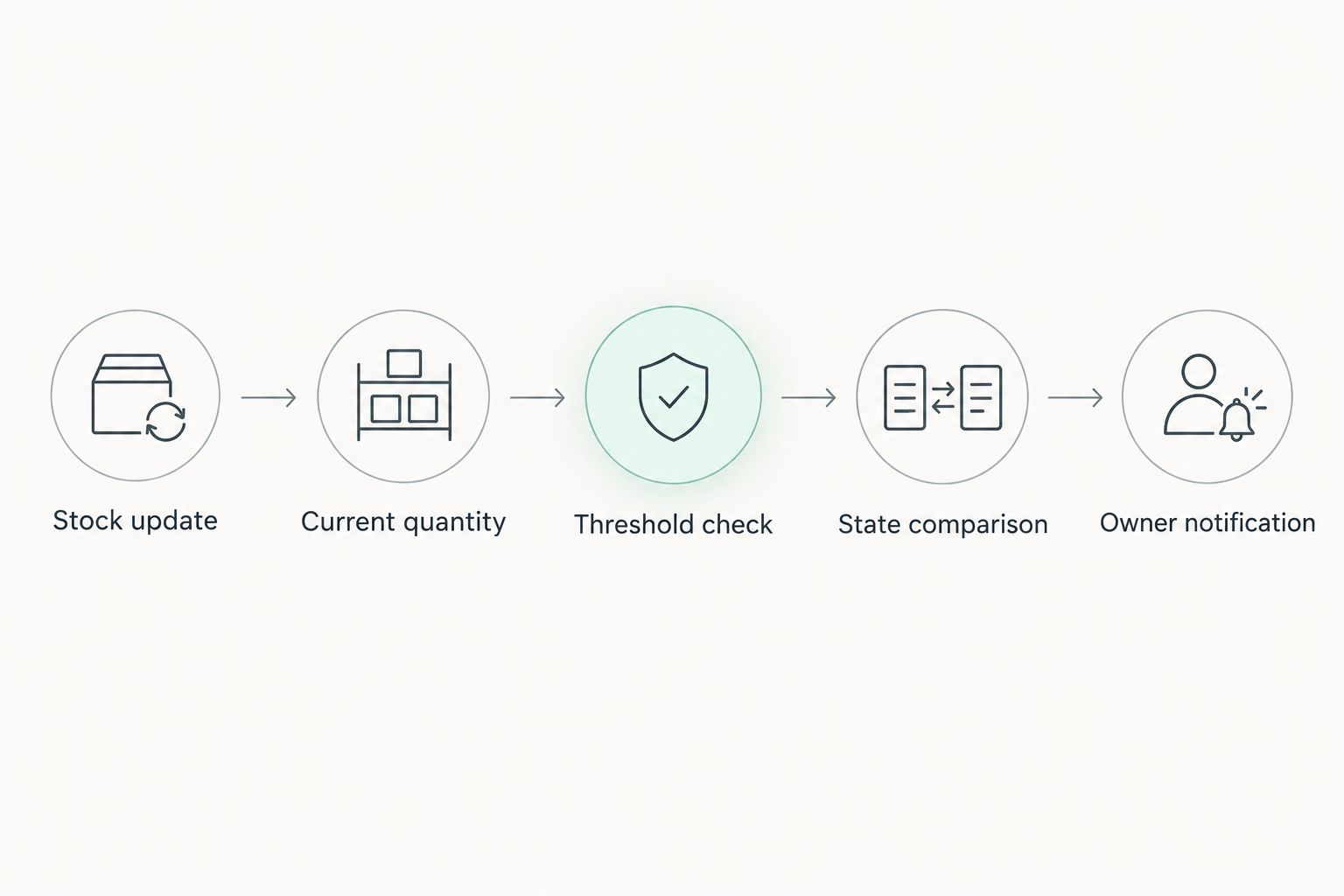
The trigger starts the evaluation; it does not decide whether an alert is necessary. Evaluate the resulting stock position after the source has recorded the change.
- Verify the supported update mechanism. Use an inventory-change event when the source exposes one; otherwise, use a supported scheduled read of current quantities.
- Retrieve the current quantity and threshold for the affected item-location combination. A movement amount alone is insufficient because it does not establish the remaining stock.
- Define the boundary explicitly. For this workflow, mark stock as low when the chosen quantity is less than or equal to the reorder threshold.
- Reject incomplete records. Send missing quantities, missing thresholds and invalid units to an exception review instead of interpreting them as valid stock values.
- Compare the newly calculated state with the previously recorded state. Continue to the notification step when the item enters the low-stock state, not merely whenever its record changes.
Expected result: A qualifying stock change produces a clear low-stock decision. An unrelated edit or a repeated update does not automatically create another notification.
For the 2026 rule definition, write the equality condition in plain language: reaching the threshold counts as low stock. If your purchasing policy requires a different boundary, change the condition and its tests together.
Event detection versus scheduled checks
Choose the detection method from the source's supported capabilities. Do not promise immediate detection from a scheduled process.
| Detection method | Best for | Advantage | Limitation |
|---|---|---|---|
| Inventory-change event | Sources that expose supported stock-change events | Starts evaluation when the source sends an event | Requires handling repeated events and checking event meaning |
| Scheduled stock check | Sources that support reading quantities but do not expose stock events | Evaluates current stock without requiring an event stream | Detection waits until the next scheduled check |
Record the chosen schedule or event behavior in your operating instructions. Your team needs to know when to expect an alert, especially when deciding whether to perform an additional manual check.
Alert state and owner notification
A low-stock flag and a notification serve different purposes. The flag describes the current stock condition; the notification asks someone to respond.
- Select a supported destination. Confirm whether the connection can update an operational record, create a task or deliver a message; configure only the action your actual setup supports.
- Record the low-stock state against the item-location key. Keep that state separate from whether a person has acknowledged the alert.
- Route the notification to the recorded owner. Include the item identifier, location, current quantity, quantity unit, threshold and reason for the alert.
- Suppress repeat notifications while the same stock position remains low. Keep the flag visible without generating another message for every subsequent change.
- Recheck the current quantity before writing the final state when updates overlap. Do not let an older event overwrite the result of a later replenishment.
Expected result: The recipient can identify the stock position and take responsibility without searching through unrelated records. Continued low stock remains visible, but does not repeatedly create the same request.
If you use Mesh App as the operational destination, verify the supported write action and permissions before mapping the alert. Its CRM/ERP modules provide business context, but the connection must still demonstrate the exact action you intend to perform.
Keep acknowledgment separate from recovery. A purchaser accepting the task does not mean the goods have arrived, and placing an order does not by itself restore available stock.
Recovery handling and acceptance tests
An alert workflow is incomplete without a recovery rule. Clearing the condition correctly makes the next genuine stock drop detectable.
- Define recovery as the chosen quantity rising above the reorder threshold. Clear the active low-stock flag only after the source records that condition.
- Keep the response history separate from the active flag. Preserve the context needed to understand who handled the alert without making an old alert appear current.
- Test a downward threshold crossing, continued low stock, replenishment and another downward crossing. Confirm both notification suppression and reactivation.
- Test a missing threshold, an unassigned owner and an invalid quantity unit. Each exception needs an explicit review route rather than a silent failure.
- Confirm that failed delivery is visible to the person maintaining the workflow. Enable the wider scope only after the pilot behaves as intended.
Expected result: The flag clears after recovery, a later shortage creates a fresh notification, and invalid records remain visible for correction.
Use this as your 2026 acceptance checklist. Test both stock state and recipient delivery: a successful threshold comparison is not evidence that anyone received the message.
Variant: flag low stock after any inventory update
The primary workflow detects entry into the low-stock state. A second workflow keeps the flag accurate whenever the inventory record changes, including after replenishment or correction.
For this variant, evaluate the current quantity on every supported stock update, then write the resulting flag only when its value differs from the stored state. Continue to notify only on a transition into low stock.
Best for: Teams that need the flag to remain current across consumption, receipts and stock corrections. Its advantage is consistent state maintenance; its limitation is that broader update coverage creates more evaluations to monitor.
Do not attach purchasing notifications to every evaluation. State maintenance and notification delivery should remain separate so a correction can update the flag without creating duplicate work.
Troubleshooting
- The same item generates repeated alerts. Check whether the workflow compares the previous state with the new state. Store state against the item-location key and notify only when that stock position enters low stock.
- An expected alert never appears. Verify the boundary condition, the quantity basis and whether the update reached the detection mechanism. Then check permissions and delivery results separately.
- Replenished stock remains flagged. Confirm that receipts trigger evaluation or appear in the scheduled read. Check that the recovery rule uses the same quantity basis and unit as the shortage rule.
- Stock from different locations gets mixed together. Include the location in both lookup and state keys. An item-wide identifier cannot distinguish separate stocking points.
- An old update restores an incorrect flag. Read the authoritative current quantity before applying the state, or use supported record-version checks. Do not assume events arrive in the order stock movements occurred.
Customize your workflow
Expand the pilot by adding stock positions with complete thresholds and assigned owners. Keep exceptions visible, and review delivery failures before introducing additional routing rules.
In your 2026 operating review, examine whether each alert produces a clear decision: replenish, correct the stock record or revise the threshold. Repeatedly ignored alerts require a rule review, not simply another notification channel.
Mesh App low stock alert automation should connect an inventory decision to accountable work. For the broader operational structure, see the project management guide for small businesses; keep project ownership separate from the inventory source's responsibility for quantities.
FAQ
How do I set up Mesh App low stock alert automation?
Verify a supported inventory source and alert destination, then compare current stock with an item-specific threshold. Track the previous low-stock state so notifications occur when the item enters that state, not on every update.
Does this workflow require a native inventory trigger?
No; a supported scheduled read can evaluate current stock when an inventory-change event is unavailable. Verify the source's actual capabilities before choosing either method.
Should I alert on physical stock or available stock?
Use the quantity that matches your replenishment decision. Physical stock describes goods held, while available stock accounts for reservations when the source calculates it that way.
Should reaching the reorder threshold trigger an alert?
Yes, the rule defined here treats a quantity equal to the threshold as low stock. Document a different boundary explicitly if your purchasing policy requires one.
How do I prevent duplicate low-stock notifications?
Store the previous state for each item-location combination and notify only when it changes into low stock. Keep the flag active while the quantity remains at or below the threshold.
When should the low-stock flag clear?
Clear the flag when the chosen quantity rises above the reorder threshold. Acknowledging an alert or placing an order does not establish stock recovery.
Can I use one alert rule across several warehouses?
Yes, if the workflow evaluates each item-location combination separately. Keep quantities, thresholds, owners and stored states tied to the correct location.
One last thing
A low-stock flag is a state; an alert is an event. That distinction determines whether replenishment clears the problem and whether the next shortage creates a fresh request. Design the state transition first, then choose how to notify the owner.