Instead of copying each incoming enquiry into your CRM, set up an email-triggered workflow that filters messages, checks for an existing record, and creates a lead only when the enquiry is new. For mesh app email to lead automation, first confirm an available email trigger and a supported record-creation method in your Mesh App account; then use the configuration and testing sequence below.
- Mesh App email to lead automation needs a verified email trigger and a supported CRM write action.
- Filter enquiries before creating CRM records; newsletters and automated replies do not belong in your lead queue.
- Check existing contacts and enquiries before creating a new lead.
- Test new enquiries, repeat messages, and unwanted email before enabling the workflow.
Why this matters
An inbox stores messages, but it does not define who owns the next sales action. Copying enquiries manually also separates the original message from the record your team uses to follow up. Automate the handoff, not just the copying.
Mesh App provides contact management alongside project management, time tracking, invoicing, and finance modules. That makes the enquiry-to-record handoff relevant to a wider business process, rather than an isolated address book.
Mesh App is best suited to small and medium-sized businesses seeking a modular CRM/ERP platform. For this email workflow, the benefit is a defined intake process; the limitation is that execution requires verified access to the necessary email and CRM actions.
For your 2026 setup, define success as an eligible enquiry reaching the correct record with an assigned next action. A workflow that creates records but loses the request, repeats existing enquiries, or leaves ownership unclear has not passed its acceptance test.
Before you start
- Mailbox access: Obtain permission to read the selected enquiry mailbox or folder. Decide which messages belong in the workflow before connecting anything.
- CRM access: Confirm the record type your team uses for leads and the supported method for creating or updating it. Check the account permissions and required data for that method.
- Duplicate protection: Decide how to identify both the sender and the enquiry. An email address identifies a contact, not necessarily a separate sales opportunity; repeated messages must not automatically become repeated leads.
Treat this guide as a workflow specification. Use the actual controls exposed by your email provider and supported integration method; the bold terms below describe configuration decisions, not claimed Mesh App interface labels.
Do not start with a production-wide inbox connection. Select a controlled intake scope first, and keep automatic creation disabled until the tests succeed. This prevents setup messages and historical conversations from entering the live pipeline accidentally.
Intake scope
Define the email trigger
- Select the Enquiry mailbox or folder that receives genuine sales requests. Exclude personal inboxes unless your team has explicitly agreed which conversations can enter the CRM.
- Confirm what the trigger treats as a new event: a newly received message, a message entering a folder, or another supported event. Write down that behaviour before building the next action.
- Define Eligible messages using information your trigger actually exposes. Include the relevant destination or intake folder; exclude newsletters, delivery notifications, automated replies, and internal discussion where identifiable.
- Decide whether existing messages should be processed. If the integration supports choosing a starting point, select the intended boundary. Otherwise, separate historical messages from the intake scope before activation.
Expected result: A fresh customer enquiry qualifies for processing, while an unwanted message does not reach the CRM creation step.
Keep the first filter understandable. A rule based on an approved enquiry folder is easier to inspect than a long collection of subject-line guesses. Subject words alone are a weak way to distinguish a customer request from unrelated email because customers do not follow a shared naming convention.
Record the mailbox owner and the person responsible for changing the filter. In your 2026 operating notes, make that responsibility explicit so a mailbox reorganisation does not silently change the automation's scope.
Choose the processing route
There are two adjacent workflows worth separating. Neither is a claim about an available Mesh App connector; each describes the behaviour to configure after confirming supported actions.
| Workflow | Best for | Benefit | Limitation |
|---|---|---|---|
| Create on first enquiry | A new customer request with no matching enquiry | Establishes a record for follow-up | Needs duplicate checks before creation |
| Update on later message | A reply associated with an existing enquiry | Keeps the conversation attached to ongoing work | Needs reliable matching and a supported update action |
Use creation for a new enquiry and updating for an established conversation. Routing every email through creation produces separate records for messages that belong together.
Record mapping
Map the enquiry data
- Identify the destination's required data using the supported creation method. Do not assume that contact creation and lead creation are interchangeable; choose the record your team actually works from.
- Map the Sender address to the appropriate contact identity data. Use the email address supplied by the message, not an address guessed from a signature or organisation name.
- Preserve the Enquiry subject and enough of the Message content to explain what the customer wants. Where supported, retain a message reference for tracing the record back to the source.
- Define Follow-up ownership and the initial workflow state using values that already exist in your destination. Choose a fallback owner for messages that do not match a routing rule.
Expected result: The resulting record identifies the sender, explains the enquiry, and tells your team who must act next.
Do not force information into unrelated fields just because those fields are available. A delivery address mentioned in a request is not automatically the customer's billing address. A signature's company name is not proof that the sender is the account decision-maker.
Keep attachments separate from the first mapping decision. Confirm whether the supported method transfers files, references them, or ignores them. If an attachment contains the essential request, your team needs an explicit way to access it before the workflow is accepted.
Set data-handling boundaries
Preserve the business request without copying an entire conversation unnecessarily. Email can contain personal information, forwarded correspondence, and material unrelated to the enquiry.
For your 2026 workflow specification, document what you copy, who can see it, and how the source message remains accessible. Apply your organisation's existing retention and access rules rather than creating a separate policy inside the automation.
If the workflow cannot distinguish the relevant message from a long quoted thread, use a narrower intake process or send the record for review. Readable context is more useful than an indiscriminate message dump.
Matching and record actions
Check before creating
- Look for an existing contact using the Sender address where the supported method allows lookup. Apply the same matching rule consistently across intake routes.
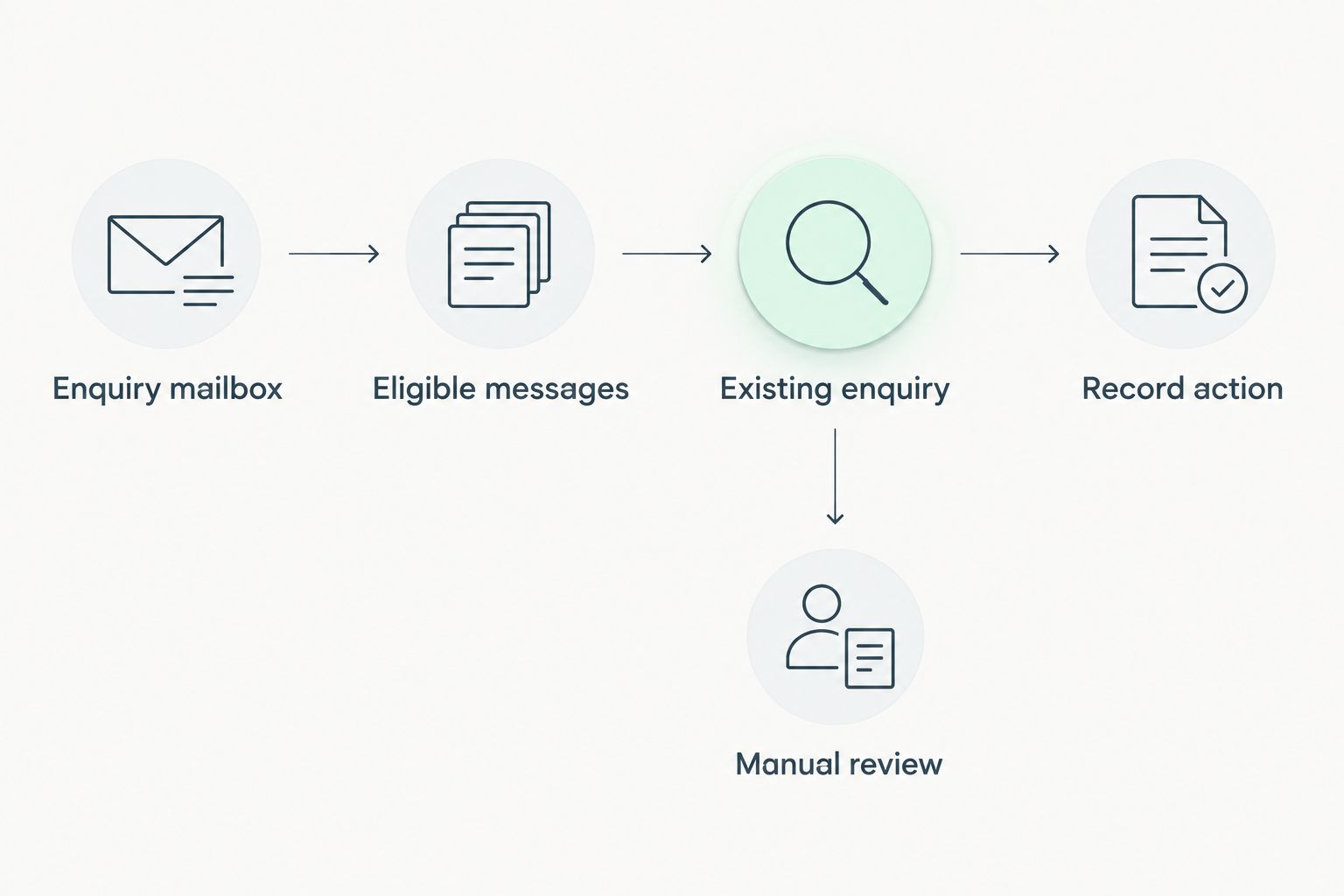
- Check whether the message belongs to an Existing enquiry. Use a stable conversation or message reference when available, together with the relationship your CRM process maintains.
- Send a genuinely new enquiry to the creation action. Send a confidently matched reply to an update action only when that action is supported and the destination is unambiguous.
- Route uncertain matches to Manual review instead of choosing an existing record arbitrarily. Record why the match failed so the reviewer can resolve it.
Expected result: A new request creates a record; a repeat or reply does not create an unintended duplicate.
An existing contact can make a new request. Matching the sender therefore answers who is writing, not whether the sales enquiry already exists. Keep those decisions separate, especially when a customer has several projects or locations.
Also protect against the same event being processed again. If your integration supports storing or checking a source identifier, use that identifier to recognise an already-processed message. A sender match alone cannot provide this protection because the same person legitimately sends several messages.
The sequence below summarises the intended decision path. Manual review is the fallback whenever filtering, matching, or destination selection cannot produce a reliable action.
Testing and activation
Validate the complete handoff
- Send 3 test emails through the selected intake route: a new enquiry, a follow-up to that enquiry, and an unwanted message that should be excluded. Use controlled test content rather than customer correspondence.
- Check the first result against the mapping specification. The new-enquiry test should produce 1 lead record with the correct sender, request context, and follow-up owner.
- Inspect the other results. The follow-up must not create an unintended duplicate, and the excluded message must not create a sales record.
- Enable production processing only after the results match the specification. Assign someone to inspect failures and confirm how processing is paused if the workflow starts producing incorrect records.
Expected result: The workflow passes its intake, mapping, and duplicate tests before handling live enquiries.
These are acceptance-test instructions, not performance benchmarks. Add further cases from your real intake process, such as a forwarded request, an attachment-only enquiry, or a returning customer asking about a different project.
Keep a dated 2026 configuration note describing the filters, mapping, matching rules, and fallback owner. When a permission or destination value changes, rerun the affected test rather than assuming the workflow still behaves correctly.
Update an existing enquiry when a reply arrives
The second variant attaches later messages to ongoing work instead of opening another lead. Build it only after confirming that your selected method supports an update action and reliable record lookup.
Use the same intake filters, then match the incoming reply to the existing enquiry. Preserve the new request context without overwriting confirmed customer details with incidental text from the message.
Do not change a sales stage just because an email arrived. A reply can contain a question, an objection, or an automated absence notice. Receipt alone does not establish a business outcome.
Keep your 2 processing routes explicit: create a new enquiry or update an existing enquiry. Where the message fits neither route confidently, manual review protects the record better than a forced match.
Troubleshooting
- No record appears: Inspect whether the message entered the selected mailbox or folder and passed the filter. Then check the creation attempt for missing required data or insufficient permissions.
- The same enquiry creates multiple records: Check whether the trigger fired again, whether lookup ran before creation, and whether the source identifier was preserved. Correct the matching rule before retrying failed events.
- Replies appear as new leads: Confirm that the workflow tests for an existing enquiry, not just an existing contact. Route ambiguous replies to review instead of creation.
- The wrong person receives the lead: Inspect the ownership rule and its fallback. Confirm that the intended owner is a valid destination value with the necessary access.
- The record lacks useful request details: Inspect the actual email data exposed by the trigger. Adjust mapping for the available content format and confirm how attachment-dependent requests are handled.
After fixing an issue, repeat the relevant test from the original mailbox. Testing only the final CRM action does not verify the filters and matching steps that precede it.
Customize your workflow
Expand scope only after the basic handoff works. Add ownership rules based on information your messages reliably provide, such as the receiving mailbox or a structured enquiry form, rather than guessing a service category from free text.
Separate sales enquiries from support messages if both enter the same inbox. Define who reviews exceptions and what happens when an enquiry cannot be matched to a destination record.
For Mesh App CRM/ERP planning in 2026, keep intake rules distinct from later project, time-tracking, and invoicing decisions. An incoming request is not yet an approved project or a billable instruction.
FAQ
How do I set up mesh app email to lead automation?
Confirm a supported email trigger and CRM record-creation method, then configure filtering, mapping, matching, and testing. Activate the workflow only after a new enquiry, a follow-up, and an excluded message produce the intended results.
Does this workflow require a specific automation tool?
The workflow does not prescribe a specific automation tool. Choose a method only after verifying that it can read the intended email events and perform the required Mesh App record actions.
Should every new email create a lead?
No: only eligible new enquiries should create leads. Exclude automated messages and route replies to existing enquiries through an update or review process.
How do I stop duplicate email leads?
Check for an existing enquiry before creating a record and recognise already-processed messages where your method supports source identifiers. Matching an email address alone does not distinguish separate enquiries from the same contact.
Can an email reply update an existing lead?
An email reply can follow the update route only when your selected method supports record lookup and updating. Send uncertain matches to manual review rather than attaching them to an arbitrary enquiry.
What information should I copy from an enquiry email?
Copy the sender identity, enquiry context, and information needed for follow-up into the appropriate destination data. Preserve a source reference where supported and avoid copying unrelated quoted correspondence.
What should I test before enabling the workflow?
Test a new enquiry, a follow-up to it, and an unwanted message. Check record creation, ownership, message context, and duplicate handling across the complete intake path.
One last thing
Test two different enquiries from the same sender before signing off the workflow. This catches a matching mistake that a simple duplicate test misses: treating every message from an existing contact as part of the same opportunity.
The correct outcome depends on the enquiry, not just the address. Document that distinction before expanding the automation to more mailboxes.