Instead of manually downloading every signed contract and uploading it to Google Drive, configure a supported transfer workflow that copies the completed document into the correct client folder. For a Mesh App Google Drive integration, first confirm how your account exposes signed documents; then connect that supported source to Google Drive, with duplicate checks and failure alerts.
- Mesh App Google Drive integration requires a verified document source before you configure signed-contract backups.
- Transfer the completed document, not a signing-page link or an unsigned attachment.
- Use contract and revision identifiers to prevent duplicate uploads without losing signed amendments.
- Treat Google Drive as a destination copy, not proof of a complete backup strategy.
Why this matters
A contract marked complete and a retrievable signed document are different things. Your workflow needs both: a reliable completion signal and access to the actual file. Otherwise, automation can file an unsigned draft or save a link that later stops working.
Mesh App is a modular CRM/ERP platform with contact management, project management, time tracking, invoicing and finance modules. Those capabilities do not, by themselves, establish a native Google Drive connector, an electronic-signature service or a particular contract-download method.
Mesh App is best suited to small and medium-sized businesses seeking modular CRM/ERP software. For this 2026 contract-backup workflow, make documented file access your first acceptance criterion—not an assumed integration feature.
The instructions below describe the configuration and checks your implementation needs. Field descriptions are proposed mappings, not claimed interface labels. Use the corresponding controls in your verified connector or documented implementation.
Before you start
- Secure the required access. You need permission to retrieve completed contract files, a Google account authorised to write to the destination folder, and access to the supported integration method. Assign 1 responsible owner to maintain permissions and investigate failures.
- Prepare the destination and test materials. Choose a restricted Google Drive folder and prepare 3 test cases: a completed contract, an incomplete contract and a signed amendment. Use non-sensitive test documents wherever possible.
- Check the non-obvious gotcha: file access. A completion notification can contain only a document identifier or signing-page link. Confirm that the integration can retrieve the completed file before building folder rules or upload steps.
Do not proceed with unattended transfers until you can retrieve and open a signed test document through the intended connection. A working login proves access to an account; it does not prove access to the required document.
Choose the transfer design
Choose the design supported by your source system and integration method. Neither design below establishes that a particular connector or endpoint exists.
| Workflow design | Best for | Advantage | Limitation | Required check |
|---|---|---|---|---|
| Completion-triggered transfer | Teams whose document source provides a documented completion event | Starts work when the completion event arrives | Repeated events and delayed file generation need handling | The event identifies a retrievable completed revision |
| Scheduled reconciliation | Teams whose document source supports listing or querying completed documents | Can identify completed files missing from the destination | Transfers wait for the next scheduled run | The query exposes stable identifiers and completion information |
Prefer a documented completion event when it supplies the required information. Use scheduled reconciliation when a supported query is the available route, or as a separate completeness check when both methods exist.
For your 2026 configuration record, document the selected method, account owner and permission scope. Keep credentials out of that record; store them using your organisation’s approved secrets-management process.
Source connection and completion filter
The first configuration unit decides which records qualify for transfer. Keep the rule narrow: a document belongs in the signed-contract destination only when the source identifies it as complete and the completed file is retrievable.
- Identify the supported source. Confirm whether contract files are accessible through your account’s documented capabilities or through the separate service that handles signing. Do not substitute an unrelated record-update event for signing completion.
- Connect using the documented authentication method. Grant the access required to read the relevant records and files. Avoid broader permissions merely to make an initial test succeed.
- Select the completion event or query. For an event-driven design, inspect a completed test record. For a scheduled design, confirm that the query distinguishes completed documents from drafts and partially signed documents.
- Apply the completion filter. Require the source’s documented completed state. If the source separates completion status from file readiness, require both conditions before upload.
- Carry forward stable identifiers. Preserve the contract identifier, completed revision identifier where available, and client or project identifier needed for filing.
Expected result: the completed test contract qualifies for transfer, while the incomplete test contract does not. The qualifying record includes enough information to retrieve the intended file and identify its destination.
Write down the exact status values returned by your source. A business label such as approved does not automatically mean that all required signatures have been collected.
Document retrieval and destination mapping
The second configuration unit turns a qualifying record into a usable file in the right folder. Keep retrieval, naming and routing separate so a failure is easy to locate.
- Retrieve the completed document. Use the documented download method. If the notification supplies a temporary download address, retrieve the file while that address remains valid rather than saving the address as the backup.
- Inspect the retrieved content. Confirm that it opens as the expected document and contains the completed signatures or completion evidence provided by the signing process. Reject an empty response or a web page returned instead of a file.
- Resolve the destination folder. Map a stable client or project identifier to the intended Google Drive folder. Do not rely on a customer name alone when different customers can share that name.
- Build a consistent filename. Include a recognisable contract reference and completed revision reference. Add a completion date only when the source supplies it reliably.
- Define unmatched-record handling. If the folder mapping is missing, stop the transfer and notify the owner rather than filing the contract into an unrelated client folder.
Expected result: the workflow holds the actual completed document, a deterministic destination and a filename that distinguishes the signed revision.
Keep the folder structure understandable without exposing unnecessary personal information in filenames. A contract reference usually serves retrieval better than a long description containing confidential terms.
Upload control and verification
The third configuration unit prevents repeated notifications from producing repeated files. It also establishes what counts as success: a verified destination document, not merely an attempted upload.
- Create a transfer key. Combine the stable contract identifier with the completed revision identifier where the source provides one. If revision identifiers are unavailable, define a documented alternative before enabling automatic amendment handling.
- Check the transfer record. Look for a previously successful transfer with the same key. Skip an already verified revision; do not skip a different signed revision of the same contract.
- Upload the retrieved file. Use the Google Drive upload operation supported by your integration method and the resolved destination folder. Preserve the source file format unless your retention process explicitly requires conversion.
- Verify the destination. Confirm that the returned file belongs to the intended folder, has the expected name and can be opened by an authorised user.
- Record success after verification. Store the transfer key, destination file identifier and completion outcome in an approved integration log. Keep document contents and authentication secrets out of routine logs.
- Send failures to an owner. Include enough context to identify the affected contract and failed stage without attaching confidential contract content to the alert.
Expected result: replaying the same completed event leaves 1 verified destination file for that revision. A different signed revision remains eligible for its own transfer.
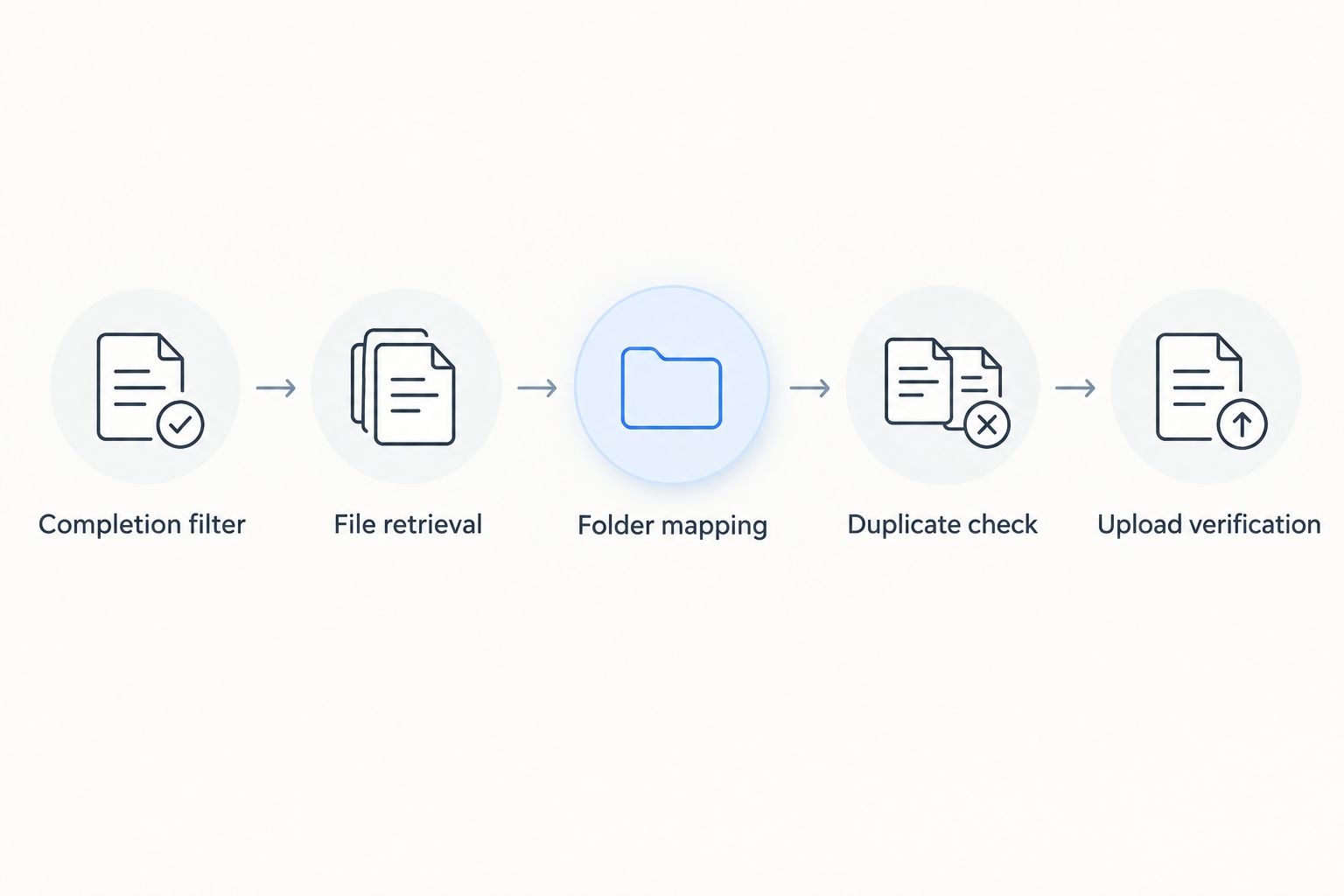
The proposed process follows a simple sequence: Completion filter, File retrieval, Folder mapping, Duplicate check, Upload verification.
Acceptance tests and activation
The final configuration unit tests the behaviour that matters in production. Record the outcomes in your 2026 operating checklist so another team member can repeat the checks after a connection change.
- Run the completed-contract case. Confirm that the correct signed document reaches the intended folder and opens successfully.
- Run the incomplete-contract case. Confirm that the workflow creates no file in the signed-contract destination.
- Replay the completed case. Confirm that duplicate protection prevents another copy of the same completed revision.
- Run the signed-amendment case. Confirm that the amendment remains distinct from the earlier signed agreement.
- Test a controlled failure. Use a test destination with unsuitable permissions and confirm that the failure reaches the responsible owner. Restore permissions before activation.
- Enable the workflow. Review the first production transfers against their source documents and retain the test results with the configuration record.
Expected result: valid documents transfer, incomplete documents stay out, repeats do not multiply files, amendments remain distinguishable and failures are visible.
These are acceptance criteria, not performance claims. Set your own review frequency and recovery expectations according to contract sensitivity and operational needs.
Back up signed amendments when a contract changes
An updated contract record is not necessarily a newly signed contract. Notes, contact details and project assignments can change without changing the legal document.
Best for signed amendments: use a revision-aware workflow that requires a newly completed document revision. Its advantage is preserving earlier agreements; its limitation is the need for reliable revision identification.
Keep the same completion filter and destination mapping. Change the duplicate key only when a distinct completed revision exists, then upload that revision as a separate file rather than silently replacing the earlier signed document.
If the source cannot distinguish revisions, hold amendments for review. Do not infer a new signed version from a changed filename alone.
For a 2026 amendment, retain the earlier signed agreement according to your retention policy. A new document does not automatically make the original disposable.
Troubleshooting
The upload contains a link or web page
Check the retrieval stage, not the destination folder. A signing-page address is not the document itself. Use the documented file-download method and inspect the returned content before upload.
The same contract appears repeatedly
Check when the success record is written and which identifiers form the transfer key. Record success only after verification, and reuse that record when the same completed revision is delivered again.
The contract lands in the wrong client folder
Replace name-only routing with a stable identifier-to-folder mapping. Stop unmatched records for review instead of using a general fallback that mixes client documents.
Transfers fail after an account change
Check the connection’s authorisation and destination permissions. Reconnect through the supported authentication process where required, then rerun a controlled test before releasing failed transfers.
A completed contract never transfers
Inspect the completion filter, file-readiness condition and failure log separately. If the document became retrievable after the original event, retry through the supported recovery path or include it in scheduled reconciliation.
Customize your workflow
Extend the process only after the basic transfer passes its acceptance tests. Add a reconciliation check that compares eligible completed revisions with successful transfer records, where the source supports that query.
For the Mesh App Google Drive integration, keep the benefit and limitation explicit: the proposed workflow removes repeated manual filing, but it still needs permission maintenance, exception handling and recovery checks. An unattended workflow is not an ownerless workflow.
Decide whether your organisation also needs separate retention controls or an independent backup. Keeping 2 copies does not establish independence if the same account, deletion process or access incident can affect both.
FAQ
Does Mesh App have a native Google Drive integration?
Confirm native connector support in the current account documentation before choosing an implementation. This guide specifies a supported transfer workflow; it does not establish that a native connector or signing trigger exists.
Can I automatically back up a contract as soon as it is signed?
Yes, when the document source provides a supported completion signal and access to the completed file. Filter for completion and verify file readiness before uploading.
Should I save the signing link or the signed document?
Save the completed document itself. A signing link is not a substitute for a retrievable destination copy of the contract.
How do I stop duplicate signed contracts in Google Drive?
Check a stable contract-and-revision key against successful transfer records before uploading. Record success only after the destination file has been verified.
What happens when a signed contract is amended?
Treat a newly signed amendment as a distinct completed revision. Preserve the earlier signed document according to your retention policy rather than automatically overwriting it.
Is copying signed contracts to Google Drive a complete backup strategy?
No, copying files to Google Drive does not by itself establish independent recovery or suitable retention. Define access, deletion, restoration and retention controls separately.
What should I test before enabling automatic contract transfers?
Test a completed contract, an incomplete contract, a repeated completion event and a signed amendment. Also confirm that a controlled permission failure produces an actionable alert.
One last thing
Test retrieval, not just upload. Ask an authorised colleague who did not configure the workflow to locate and open a signed test contract using only its client and contract reference. Add that check to your 2026 review: a successfully uploaded file is useful only when the right person can retrieve it.